
- Training
- Service
- Promotion
- Schedule
- Testing Center
- News
- Contact
9/5/2019


Choose your version: Office 365 or 2019 | Office 2013 - 2016
Translate words or phrases in Word, Excel, or PowerPoint
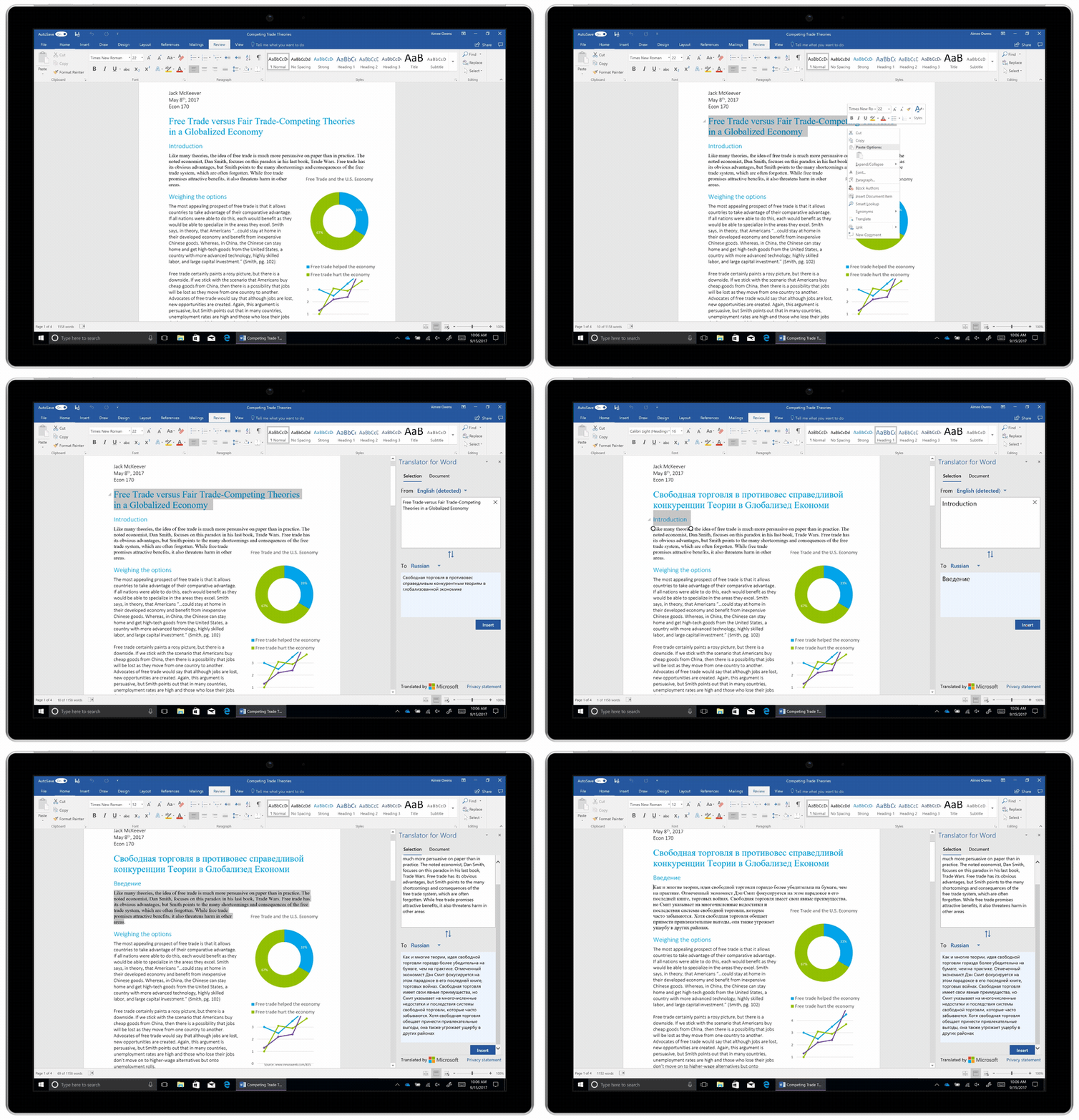
Note: In Excel, there is no Insert button, you'll have to copy/paste the text you highlighted in step1.
You might see a list of several translations. Expand the translated item to show a usage example in both languages. Choose the one you want and click Copy.

Available in: 


This feature is available to Office 365 subscribers using Version 1710 or higher of Word; or Version 1803 or higher of PowerPoint or Excel. You must also be connected to the internet, and have Office Intelligent services to use Translator.
Subscribers get new features and improvements monthly. Click to try or buy a subscription.
Not sure what version of Office you're running? See What version of Office am I using?
This feature is not currently available to customers using Office 365 operated by 21Vianet.
Translate a whole file in Word, Excel, or PowerPoint

Available in: 
Translate words or phrases in OneNote for Windows 10
Translate a whole page in OneNote for Windows 10
Change translation language
If you later want to change the To language for document translation, or if you need to translate a document to more than one language, you can do so, by selecting Set Document Translation Language...from the Translate menu.
The translation tools available depend on which Office program you're using:

You can have an entire Word document or Outlook message translated by a computer ("machine translation") and displayed in a web browser. When you choose this kind of translation, the content in your file is sent over the Internet to a service provider.
Note: Machine translation is helpful for conveying the basic subject matter of the content and for confirming whether the content is relevant to you. For high accuracy or sensitive files, human translation is recommended, because machine translation might not preserve the full meaning and tone of the text.
Choose your translation language

Translate the document or message

A browser tab opens with your file in both the original language and the language that you selected for translation.
Note: If this is the first time you have used translation services, you may need to click OK to install the bilingual dictionaries and enable the translation service through the Research pane. You can also see which bilingual dictionaries and machine translation services you have enabled by clicking the Translation options link in the Research pane. See Translate selected text to learn how to access the Research pane.
You can use the Research pane to translate a phrase, sentence, or paragraph into several selected language pairs in the following Microsoft Office programs: Excel, OneNote, Outlook, PowerPoint, Publisher, Visio, and Word.
Note: In PowerPoint, only one slide's text box can be translated at a time.

Note: In Word, you can right-click anywhere in the document, and then click Translate.

Notes:
In Word, Outlook, PowerPoint, and OneNote, the Mini Translator displays the translation of one word as you point at it with your cursor. You can also copy the translated text to the Clipboard, paste it into another document, or play a pronunciation of the translated word.

Note: The Mini Translator will continue to appear whenever you move over words. To turn it off, repeat step 1 above.
To translate text directly in a browser, you can use Bing Translator. Powered by Microsoft Translator, the site provides free translation to and from 50+ languages. To learn more, see Translating text using Translator.
Nguồn: Microsoft

12/11/2025


