
- Training
- Service
- Promotion
- Schedule
- Testing Center
- News
- Contact


When we work together and share ideas and files, we achieve our goals faster than working alone. However, as collaboration expands across applications, teams, geographic borders, and time zones, staying organized and locating files has become increasingly challenging. We've all experienced the frustration of not remembering where a file is then having to search through emails, chat conversations, OneDrive or SharePoint sites to find it.
To minimize this frustration and save you time, we are thrilled to introduce the People and Meetings views in OneDrive for Web. These new views let you effortlessly locate files based on the people you work with and your meetings. Let's take a look.
Browse files associated with your collaborators
When it comes to finding a file, one key piece of information we rely on is the person or people we worked with on that file. OneDrive's new People view gives you a view of files based on who you collaborated with. Here you’ll see files that have been shared with you, both inside and outside your organization, organized by the people who shared the file.
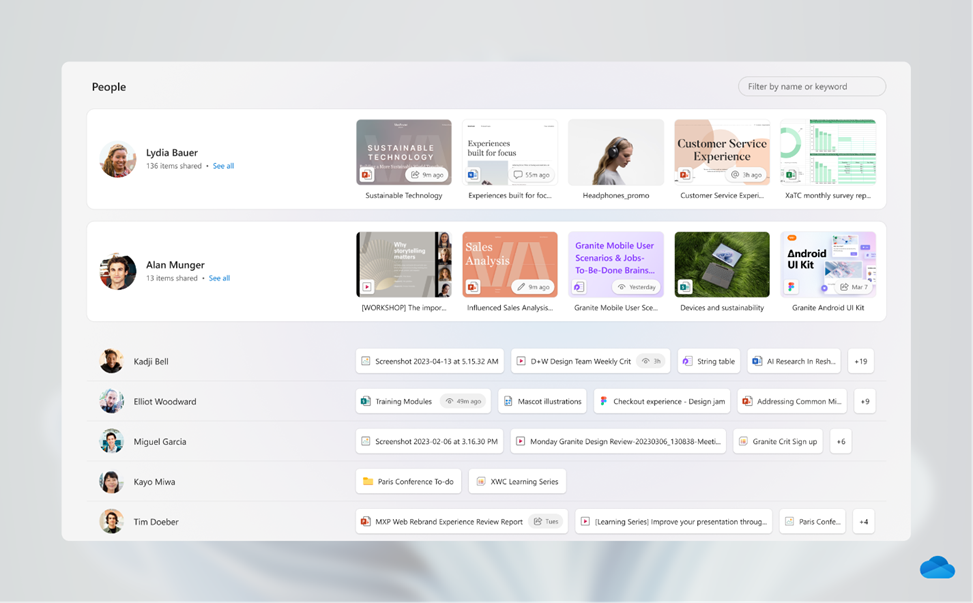
You can access the People view, using the left navigation pane of OneDrive for Web. The view prioritizes the people you work with most frequently or those you worked with most recently to make it easy to locate important files. As a security and privacy measure the People view will only show files to which you have access.
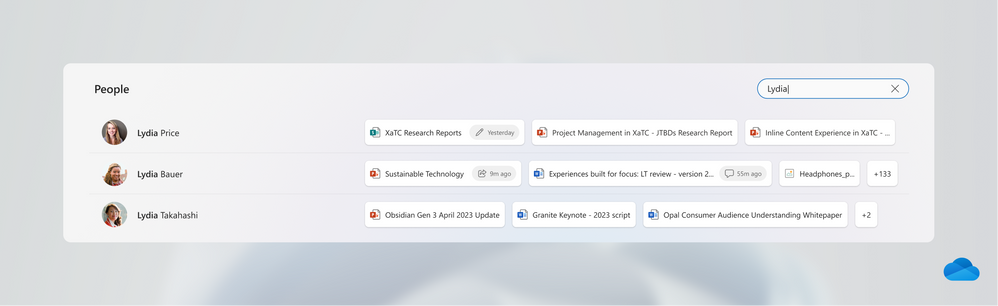
When you need to find a specific person, you can use the search box to locate them.
If there’s one or more people with whom you collaborate most frequently, you can easily pin them to the top of the view. When you do this, you’ll notice that the pinned view shows thumbnails of each file, giving you even more context without having to open each document.
When you double click on any person, you’ll see all the files that person has shared with you. This view also features all the standard OneDrive filter and column controls used throughout the rest of the OneDrive for Web experience.
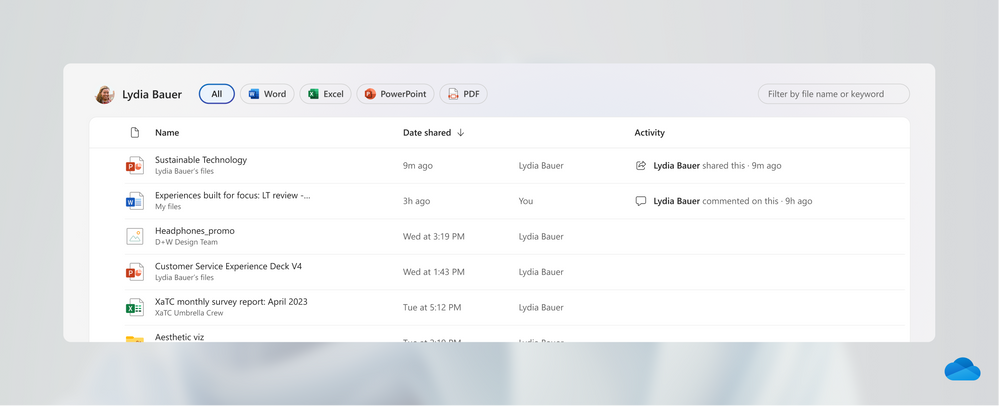
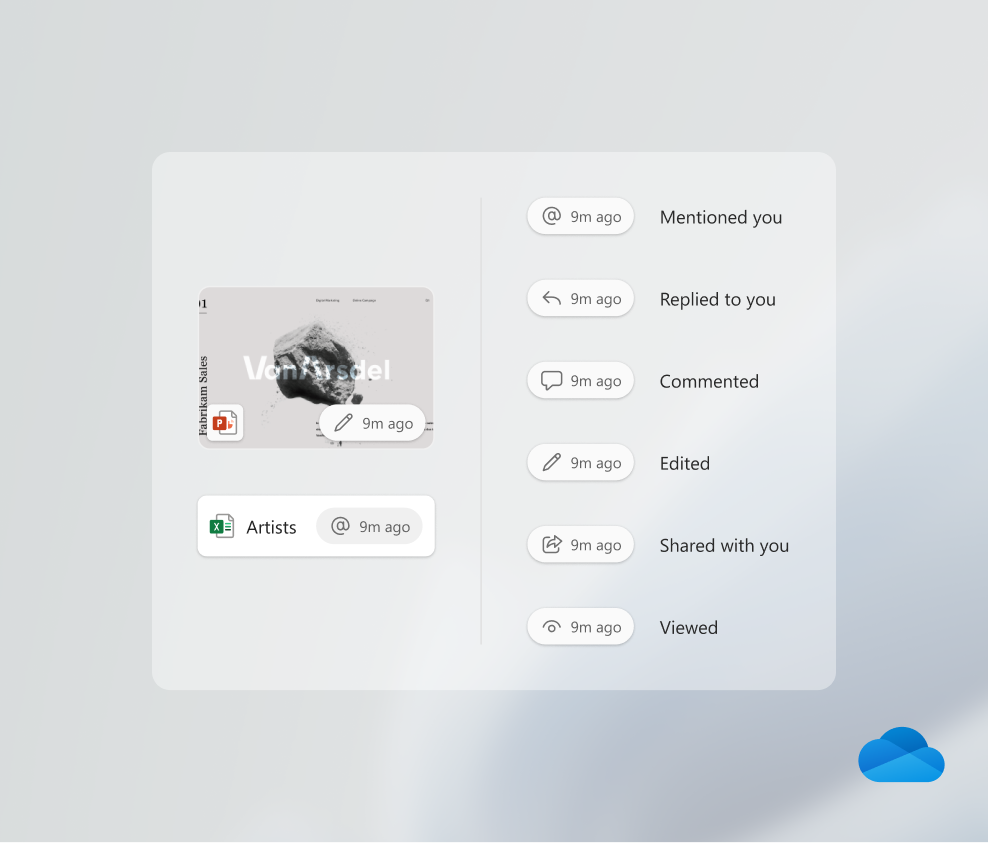
You can also see the file activity, such as comments, edits, and views in the activity column to easily catch up on what's happened in the file.
Browse files associated with your meetings
We spend much of our workdays in meetings, and within those meetings coworkers share plenty of files either in chat or the meeting invite. Before and after meetings, we often spend time digging through meeting invites and chat threads trying to find pre-reading materials for upcoming meetings or content from past meetings. Finding the files and even the meeting recordings can be time consuming.
The new Meeting view in OneDrive for Web is here to help. It brings together all the content shared in both past and upcoming meetings so you can easily find files as well as meeting recordings.
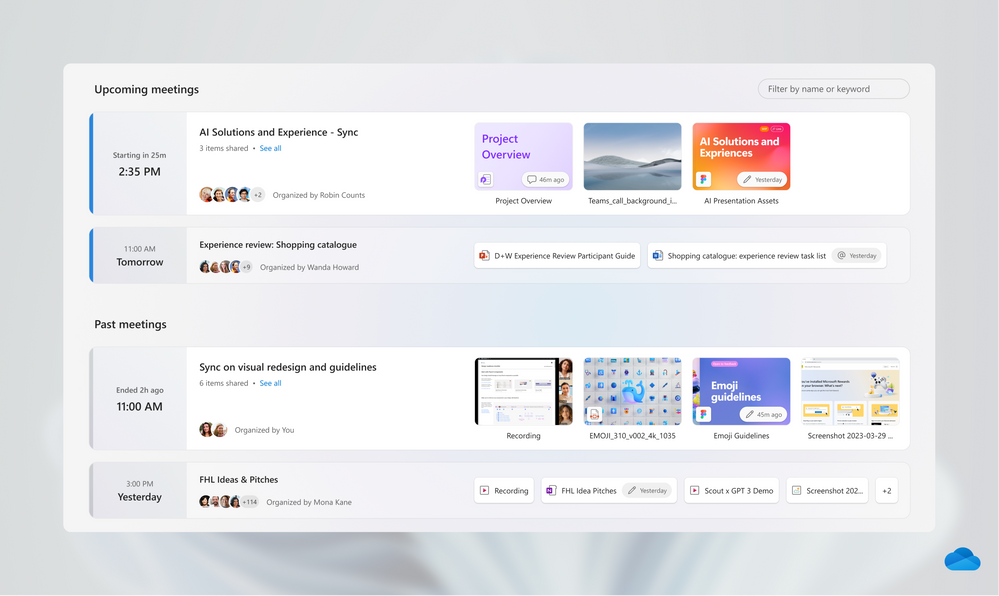
Clicking on any meeting brings up a view of the files that were sent ahead as pre-read or that were shared via the meeting chat. Additionally, if the meeting was recorded, you’ll see the Teams meeting recording here.
You can use the search bar in the Meetings view to quickly find a specific meeting by name.
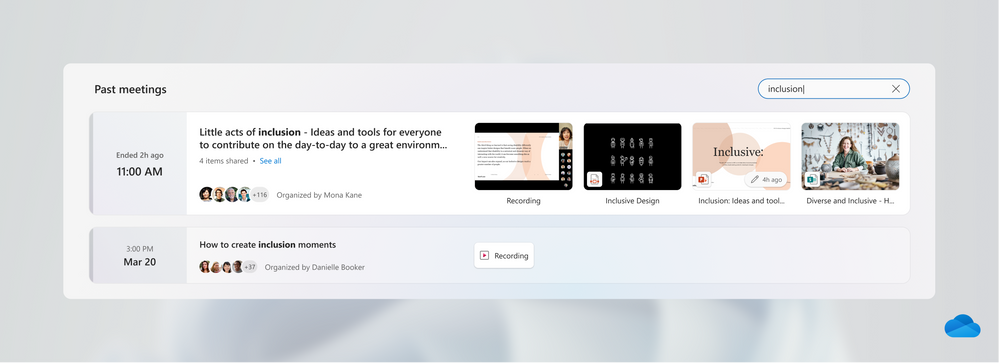
When you click into a meeting, you’ll see all the associated files along with the meeting recording.
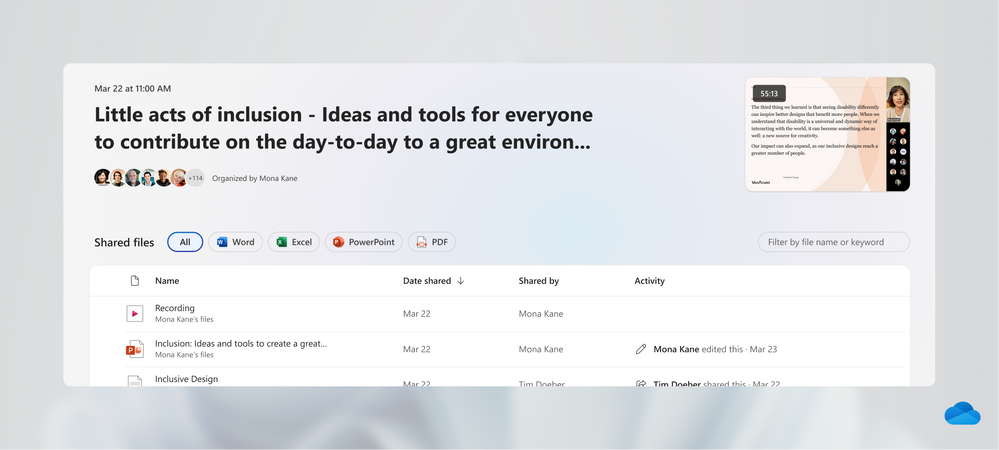
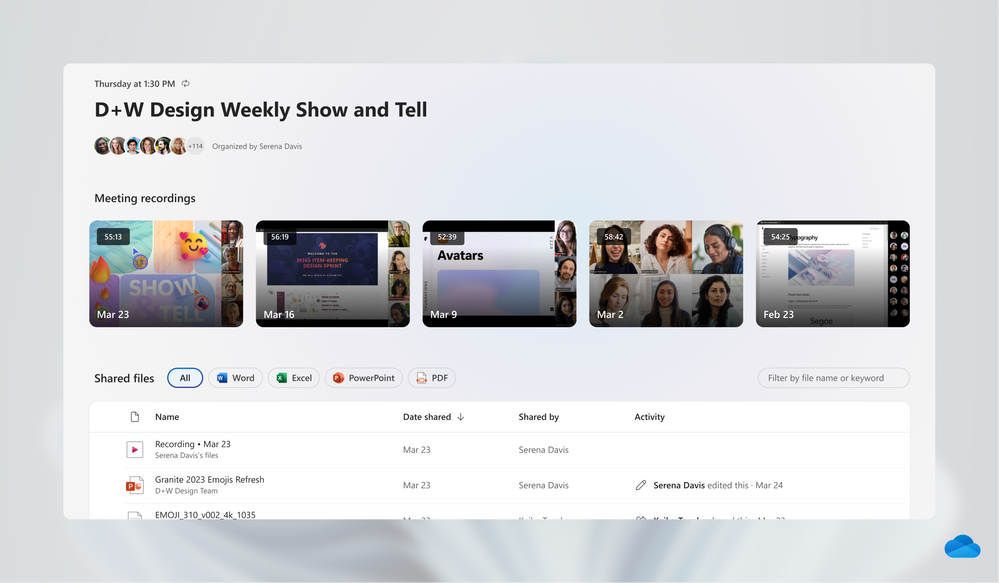
When you click into an entry for a recurring meeting, you’ll see all the files and meeting recordings associated with that meeting series.
The People and Meetings view are here to help you browse and get to your files quickly. These two views are currently rolling out and will soon be available to work, school, GCC and DoD customers worldwide. We'd love to hear from you and learn from your experience. Feel free to leave a comment below.
Source: techcommunity.microsoft.com


