- Training
- Service
- Promotion
- Schedule
- Testing Center
- News
- Contact


Whether the school year has just ended or just begun for you, Microsoft Forms has been rolling out features for the classroom. We placed a special focus on our teachers and students when developing these features; however, company employees can also leverage them for the workplace to collect input and engage colleagues. Read on to learn about five of our latest updates for educators.
Powered by Forms Polls in Teams meetings, Multiple Choice Quizzes in Teams Meetings are now 100% available. To engage your students during class, you can use this feature to create knowledge check questions or run a trivia game. As students take the quiz, you get real-time insights to help you adjust instruction and support individual students.
With this feature, you can choose to keep the identities of poll respondents anonymous. Whether you choose to keep respondents anonymous or not, you can export poll results directly to Excel from Teams. You can also view results (individually and overall in a data visualization) by finding your poll on your Microsoft Forms page under “All My Forms.”
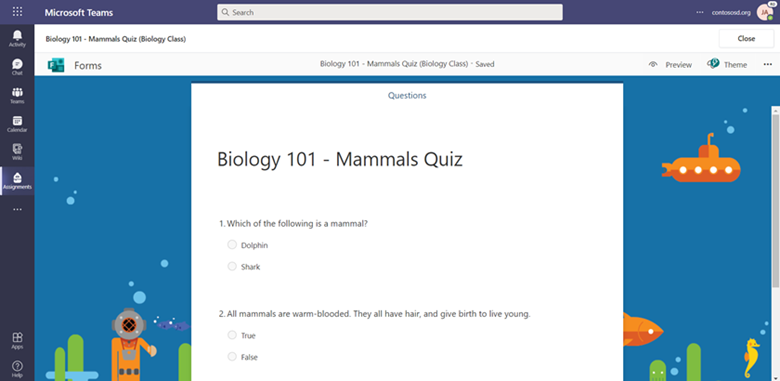
We’ve streamlined the experience of creating, editing, and assigning quizzes in Teams. Now, you can create your entire quiz without leaving Teams—there’s no need to open in a new window or tab on your browser. Later, if you needed to make an edit to your quiz, you can also do so directly from Teams Assignments.
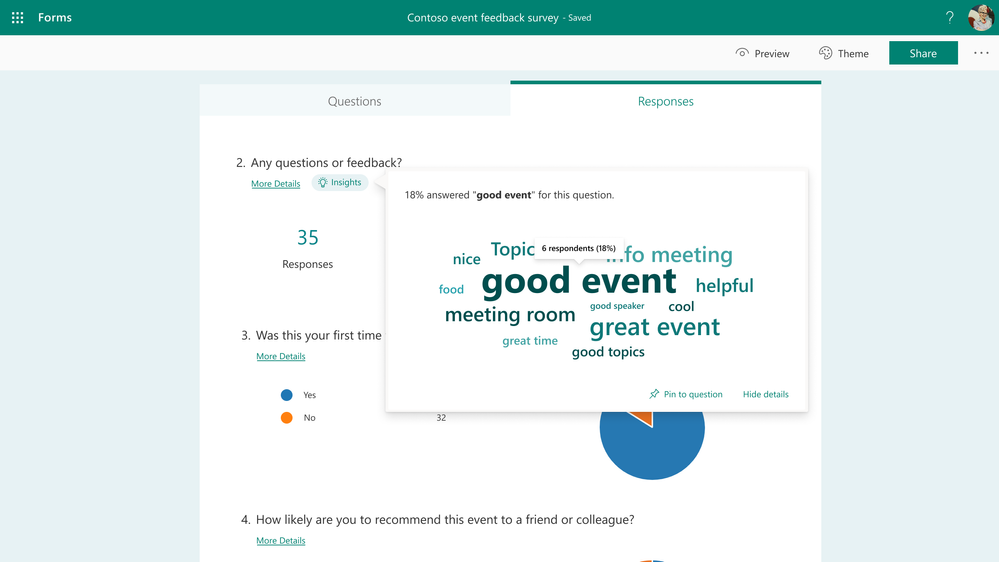
We are excited to share that you can now leverage a new kind of insight in Forms: word clouds for open-text questions. While on your Responses page, you can find word clouds under the Insights button for an open-text question. With word clouds, you can get a quick understanding of phrases commonly mentioned by your colleagues, your students, or their parents in their text responses. Easily share the word cloud by grabbing a screenshot to add to your email or presentation.
To dig deeper, you can click into the word cloud to find statistics on the frequency of these phrases.
Features Rolling Out Soon
Earlier this year, you received the capability to bold, italicize, or underline words in Forms. Starting next week, you can also change font size and font color, as well as use bulleting or numbering, in your forms. This enables you to emphasize certain phrases in your questions, answer choices, titles, and descriptions.
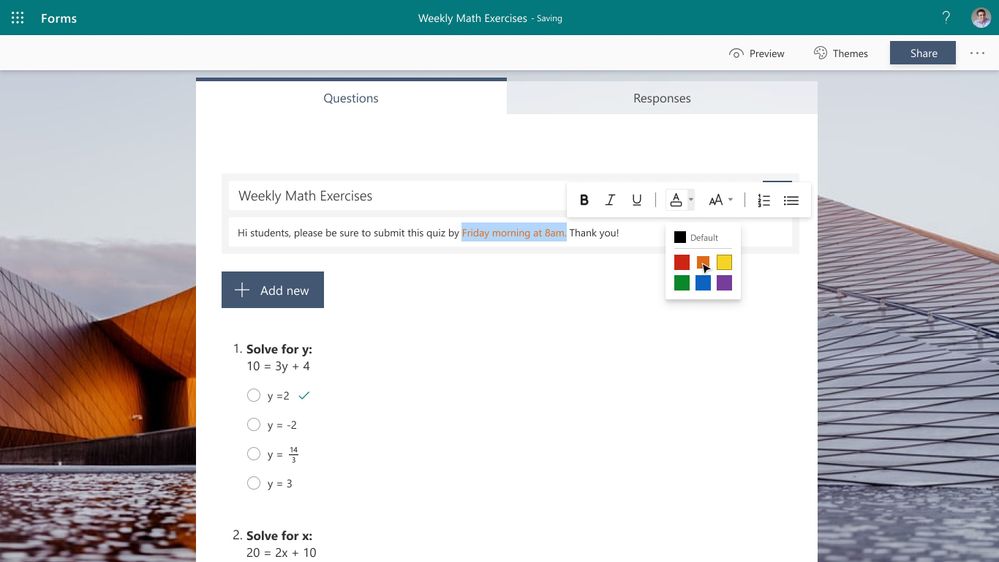
Simply highlight your text to format via the floating tool bar. These additional text formatting features will become generally available for our business and education customers next week and will begin rollout to our government cloud customers by the end of this month.
Starting in mid-August, you will notice that the top right corner of your Forms design page has been updated for a clearer experience.
Under the Send button, you’ll find the options to send your form via URL, QR code, and more, and define which audiences can respond to your form. Please know that clicking the Send button does not automatically send the form to anyone.
Under the people icon next to the “Send” button, you can share edit access to the form with fellow educators or colleagues who are co-authoring (co-creating) or evaluating the form with you.
Source: techcommunity.microsoft.com