
- Training
- Service
- Promotion
- Schedule
- Testing Center
- News
- Contact


What’s the difference between ‘Poll’, ‘Polls’ and ‘Forms’ app in Teams?
Poll, Polls, and Forms are 3 different apps (icon shown below) for the polling experience in the context of Teams meetings.
| App Name |
Icon |
Description | |||
| Polls |  |
Polls app is dedicated for the polling experience in Teams | |||
| Forms |  |
Forms app was tailored for different experiences in Teams based on the sync vs async user scenarios, as it points to polling experience in meetings for quick creation to launch, while it points to survey experience in the context of Teams channel. | |||
| Poll |  |
Poll app is now deprecated in Teams | |||
Note, Forms app will be replaced by Polls app in Teams meetings for polling experience and will point to survey experience across Teams.
How can I add the ‘Polls’ app in my Teams meetings?
.gif)
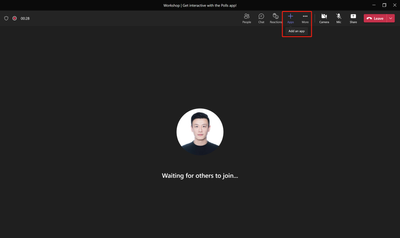
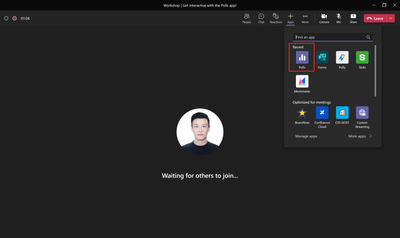
Similarly, if you are trying to add Polls app during meetings, you can follow the same steps as above by adding Polls app via top navigation bar shown as below
 |
 |
|
Add ‘Polls’ during meetings
Note: Polls app is currently supported in scheduled meetings, meeting chats and group chats. However, it is not yet supported in channel meetings and 1:1 calls.
What’s the key functionalities supported in Polls?
|
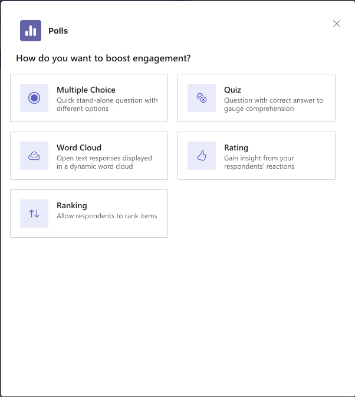
Area: Question types supported Description:
Screenshots:
|
Area: Instant Poll (in-meeting only) Description: During meeting, launch a poll with binary options (Yes/No, Thumb up/down etc.) by single click to engage with attendees. Screenshots:
|
|||||
|
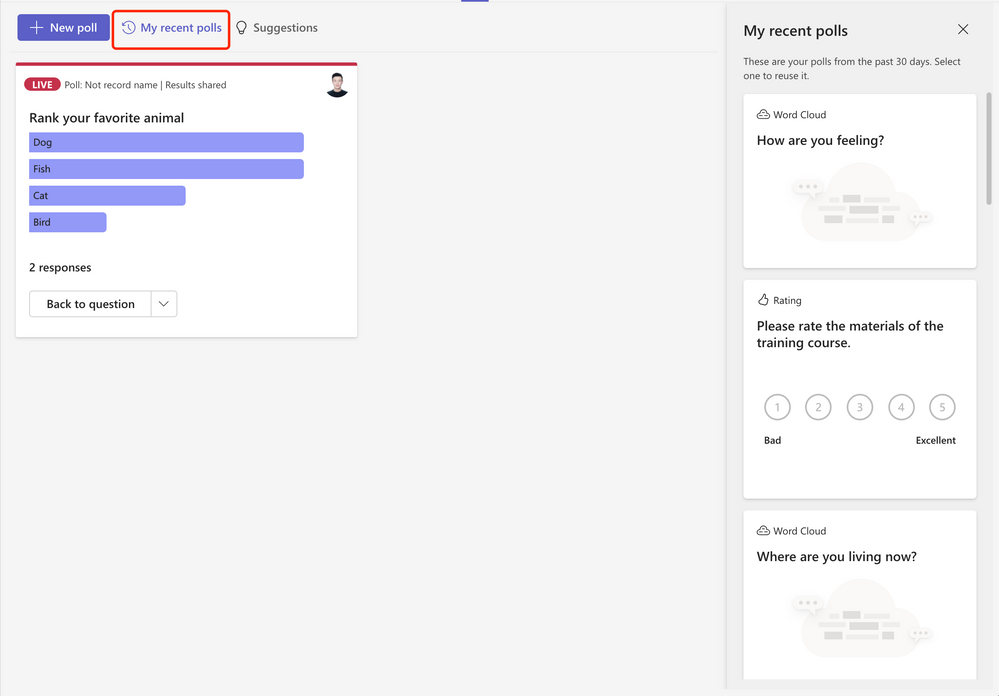
Area: My recent polls Description: Re-use your previously created polls Screenshots:
|
Area: Support Image in Poll Question Description: Add image to poll questions Screenshots:
|
|||||
|
Area: Multiple-question poll Description:
Screenshots:
|
Why some of the responses were not shown in Word Cloud poll?
The Word Cloud poll is targeting to capture the key words from responses. We used AI to extract the key phrase and display as words in the result view. While not all responses could be extracted a key word so some of the responses may not be displayed.
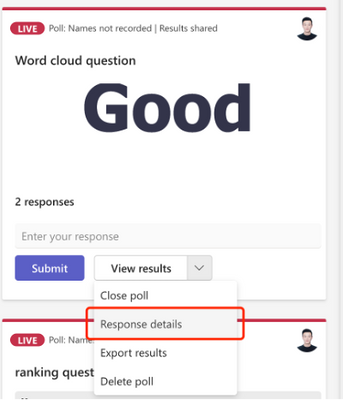
The creator can check the full inputs in text by clicking “Response details” in the poll card.
Who can create and launch a poll?
Meeting organizer and presenters have the access to create a draft poll and launch it before/during/after the meeting. Attendees cannot create/launch a poll.
How can I share my draft poll with others/set a co-author?
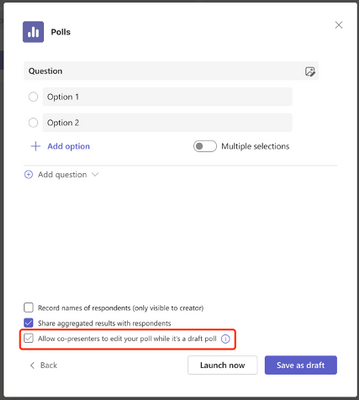
When drafting a poll, select the ‘Allow co-presenters to edit your poll while it’s a draft poll’ option to allow other presenters/organizers in the meeting to edit/launch the poll you created.
How can I manage the result access/share results?
By selecting ‘Share aggregated result with respondents’ setting, results will be shared with respondents after you launched the poll, they can:

If the ‘Share aggregated result with respondents’ setting was not selected, then poll results will only be visible to the poll creator.
Why it shows ‘Failed to create new poll’?
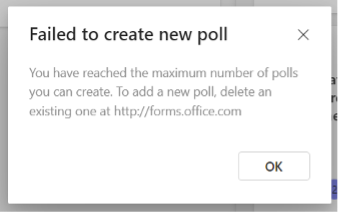
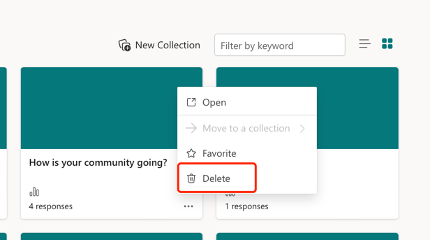
Currently, you can create and store up to 400 polls (max.) in Teams meetings, and a message will be shown as ‘Failed to create new poll’ (as below). In this case, you can go to forms.office.com and delete some previously created polls to free up quota for new ones.
|
Message |
Delete previous poll |
|
 |
 |
|
Source: techcommunity.microsoft.com
.gif)
.gif)
.gif)


