Build smart business applications using Microsoft Power Apps with no code! Learn PowerApps from basic to advanced.
- Connect to different sources of data (OneDrive, Google Drive, SQL, etc.)
- Create real functional business applications, on the web, tablets, and phones for businesses and organizations.
Module 1: PowerApps concepts & Microsoft Power Platform introduction
Lesson
- Describe the business value of the Microsoft Power Platform
- Identify foundational components of Microsoft Power Platform
- Describe how to build applications with Microsoft Power Apps
- Canvas Apps and Model-Driven Apps
- Describe building automation with Microsoft Power Automate
- Describe the capabilities of Microsoft Power BI.
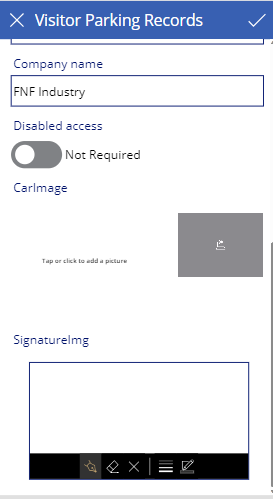
Lab: Visitor parking Log App
- Exercise: Build a canvas app from data source
- Running your first application
- Share, public app
Module 2: Data Sources
Lessons
- Data Storage and Services
- How do I decide which database to use?
- What is Delegation?
- Specific Data Examples
- Displaying Data
Lab: Exploring SharePoint online
- How to create lists
- How to configure permission on lists
- How to add members to a list
Module 3: PowerApps Controls
Lessons
- Understand how to use controls in a canvas app
- Use the different types of controls
- Text Controls for Data Entry and Display
- Controls – Drop downs, combo box, date picker, radio button and more
- Charts – present information in pie, line and bar charts
- Core property of controls: OnSelect, Visible, DefaultMode, …
Lab: Visitor parking log app
- Add Controls to collect and display data
- Combining image with pen inputs
- Combining image with camera input
- Combining image with upload photo input
- Add Formulas to allow the controls to interact.
Module 4: Gallery and Form Control and App object
Lesson:
- Galleries
- Customizing galleries
- Core property of galleries:
- Item, Default, TemplateFill, Layout
- Forms and data cards
- Edit forms, updates, textboxes
- Functions used in Forms:
- SUBMITFORM, LASTSUBMIT, EDITFORM, NEWFORM
- Core property of Form:
- Item, Layout, Default Mode, OnSuccess, OnFailure
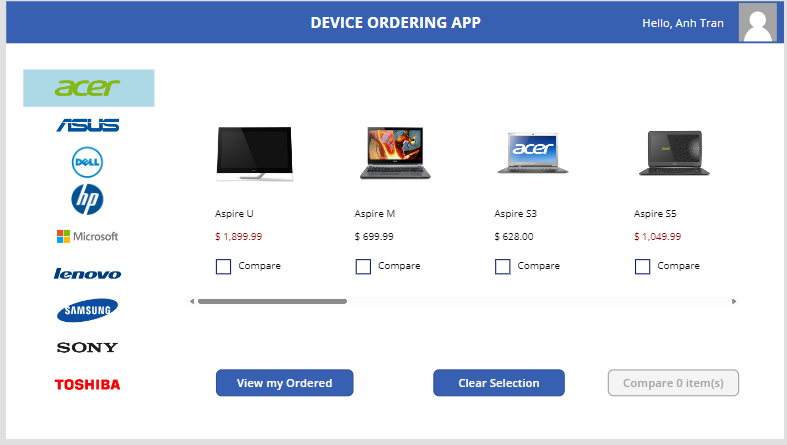
Lab: Device Ordering App
- Connect multiple sources to one app
- Create a gallery to select manufactures, devices
Module 5: Power Fx
Lesson:
- Using variables with controls: SET, COLLECT
- Fitering Data functions: FILTER, SEARCH, LOOKUP, DISTINCT, SORT, SORTBYCOLUMNS
- Action functions: NAVIGATE, BACK, NOTIFY, RESET
- Format Functions: TEXT, VALUE, DateTimeValue
- Device Function: USER
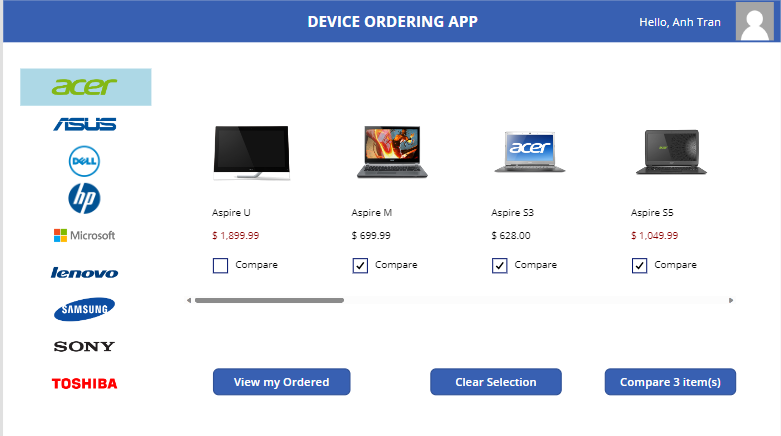
Lab: Device Ordering App (cont.)
- Show information of current users using app.
- Add buttons & use formulas to interact with these buttons.
- Filter devices based on selected manufacturer.
- Conditional formatting to price of devices.
- Create a collection for the selected devices.

Module 6: Create tables in Dataverse
Lesson:
- Introduction to Microsoft Dataverse
- Introduction to Table characteristics
- Define columns in Microsoft Dataverse
- Column types in Microsoft Dataverse
Lab:
- Create a Custom Tables and Columns
- Create a calculated column
- Create a business rule
- Connect the data from the Canvas App
- Create a Form to Submit requested devices
.png)
.png)
Module 7: Integrating a Power Apps App with Power Automate
Lessons:
- The value Power Automate brings
- Type of flows
- Understand trigger & actions
- Choose the right trigger to start a flow
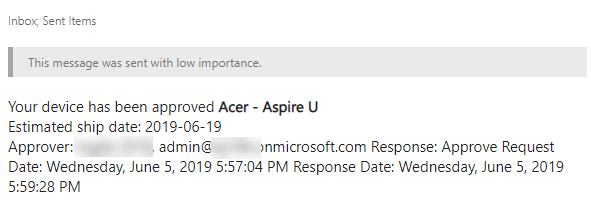
- Introduction to Approval Request process
- Start a flow from Power Apps
Lab:
- Build a flow from a template
- Edit flow
- Test the clould flow
- Trigger a flow from Power App button
Module 8: PowerApp Integration
Lessons
- Embed PowerApps in Teams
- Embed PowerApps in SharePoint Online
Lab 1: PowerApp Integration
- Embed your app in Microsoft Teams
- Embed your app in SharePoint Online
Module 9: Administration and Maintenance of PowerApps
Lessons
- Introduction to Solutions
- Reuse an app in another location (move from testing or development to production)
- Identify which users have been using PowerApps
- Review app usage
- Prevent a user from using PowerApps
- Explore version of app and restore version for app
Lab:
- Create a solutions and add existing app and flow to this solution
- Export an app for use in another location
- Review current PowerApp users in your test environment.


.png)
.png)
.png)