
- Training
- Service
- Promotion
- Schedule
- Testing Center
- News
- Contact
8/1/2024


The web version of Excel has received several updates recently. If you haven't used the web version in a while, you might be surprised at how similar it is to the desktop version of Excel.
1. Enhancements for Rows and Columns
When you hover your mouse over the column header, a 6-dot icon appears.
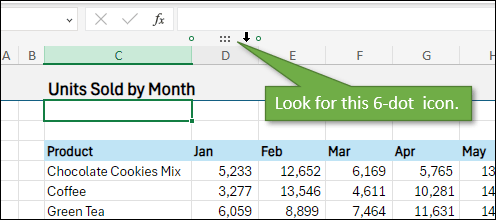
You can click and hold this icon to move the column, and a vertical bar indicates where it will be inserted. This works similarly for rows.
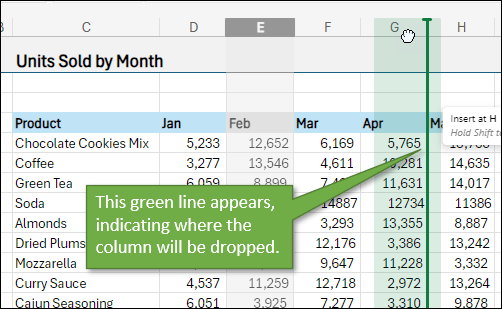
Unlike the desktop version, there's no need to hold the Shift key to see the vertical bar. The Shift key performs a replace function, and the Ctrl key makes a duplicate copy.
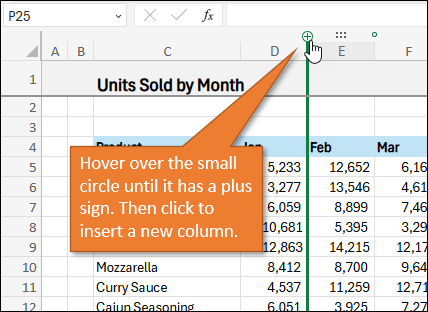
Hovering above the column header reveals small dots that allow for quick insertion of columns and rows. This update simplifies the process compared to the traditional right-click and insert method.
2. Freeze Panes
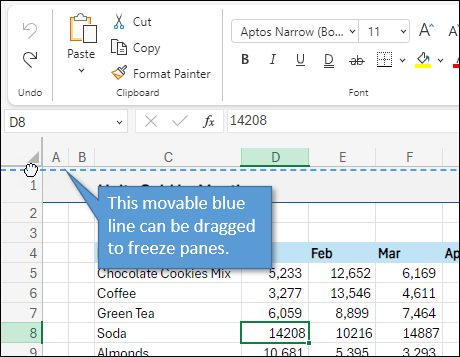
Freezing panes is now even easier with the modernized Excel grid. By dragging the blue line that appears when you hover above the row headers, you can freeze panes without using the Ribbon. Of course, this works similarly for column headers as well.
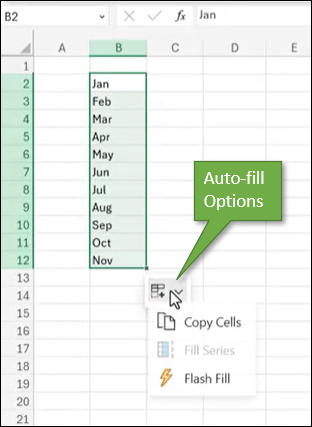
3. Autofill Options
Typing a value and dragging the fill handle now presents an autofill options menu. This feature, which includes Fill Series and Copy Cells, is also available for numbers and dates. Although it may be a bit buggy currently, it's a welcome addition.
4. Paste Options
After copying cells, right-clicking to paste now offers a paste special menu with various options such as values only, formulas, or formatting. These options are also accessible from the Home tab.
.png)
5. Links to Sheet Views
Sheet views allow you to create custom views for sorting or filtering data. You can now copy a link to a sheet view and share it via email or message. This link will open the file in the specified view.
You can also add the sheet view to your bookmarks bar for quick access.

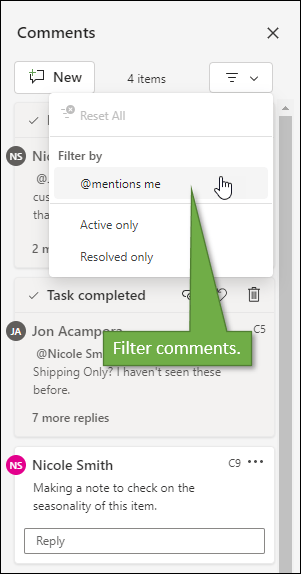
6. Filters for Comments
New filters have been added to the comments task pane, allowing you to filter active comments, resolved comments, or comments that mention you specifically. This helps manage busy comment sections more effectively.
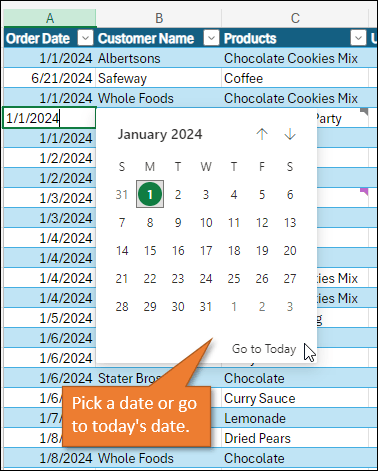
7. Date Picker
A date picker is now available for any cell containing a date. Double-clicking the cell or pressing F2 opens the date picker, which allows for easy date selection and navigation. It also appears when inserting today's date using the Ctrl + ; shortcut.
Source: excelcampus.com

12/11/2025


