
- Training
- Service
- Promotion
- Schedule
- Testing Center
- News
- Contact
6/7/2022


Use a button to provide an interactive area to redirect the user to.
To add a button:
1. Open the design studio to edit the content and components of the portal.
2. Select the page you want to edit.
3. Select the section you want to add the button component to.
4. Hover over any editable canvas area, and then select the Button icon.
(1).png)
5. Specify the button label. This label will show up on the button component itself.
6. Select whether the button will redirect a user to a specified URL or to a page within a Power Pages site.
7. Select the button and editing options will appear.
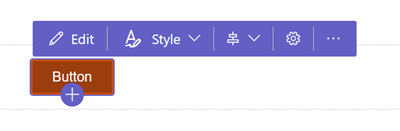
Using the editing options, you can:
Source: https://docs.microsoft.com

12/11/2025


