
- Training
- Service
- Promotion
- Schedule
- Testing Center
- News
- Contact
6/7/2022


Use the video component to embed videos on your page.
Adding a video
1. Open the design studio to edit the content and components of your page.
2. Select the page you want to edit.
3. Select the section you want to add the video component to.
4. Hover over any editable canvas area, and then select the Video icon.
(3).png)
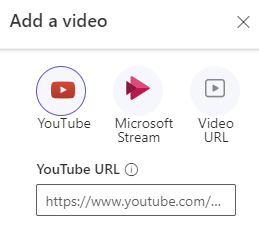
5. You can select the video origin and enter the URL.
|
Note Some videos might be configured to disallow being embedded on external sites. These videos might not be displayed on your page. |
||
Editing a video component
After a video component is added, selecting the video component will open the properties bar, where you can:
|
Option |
Description |
|||||
|
Start time |
Defines the start time of the video. |
|||||
|
Show player controls |
Enables a user to see the video player control buttons, including start, stop, and forward controls. |
|||||
|
Autoplay |
Allows the video to automatically play when the page is rendered. |
|||||
|
Loop |
Allows the video to run in a continuous loop. |
|||||
Source: https://docs.microsoft.com

12/11/2025


