
- Training
- Service
- Promotion
- Schedule
- Testing Center
- News
- Contact
8/12/2020


You can change an appointment, meeting, or event that you created to update your Outlook calendar and to let other people know about schedule changes.
Important: You can't change the details for meetings or events other people have invited you to.
When changing a meeting you've created, you must send an update in order to save the changes. If you're adding additional attendees to the meeting and making no other changes, you can choose whether to send the update to all attendees or just the added attendees.
When you open a recurring appointment, meeting, or event, Outlook will ask you if you want to open just this one event or the entire series of events.
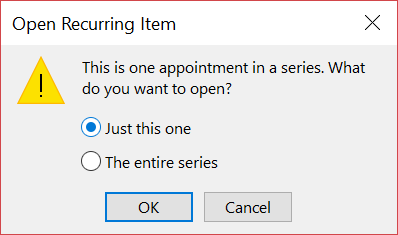
If you'd like to edit a single instance of a recurring item, select Just this one. Otherwise, select The entire series. You can make changes to the appointment, event, or meeting details, recurrence patterns, and attendees. When you're done, select Save & Close for appointments and events or Send Update for meetings.
Some limitations when editing one instance of a recurring item:
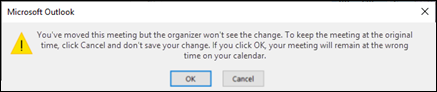
You cannot change the details of a meeting you were invited to by others. If you try to move the meeting on your calendar, Outlook will warn you that the organizer will not be notified of the change and the meeting on your calendar will be at the wrong time.
Events are all-day items that, by default, appear as free time on your calendar. A conference or a vacation is an example of an event.

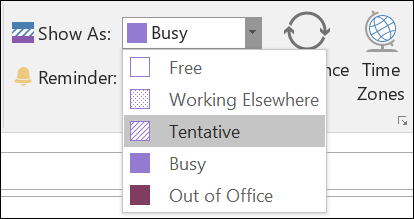
New all day events automatically show as free on your calendar. Meetings and appointments automatically show as busy on your calendar. You can change how any of these items display on your calendar by updating the Show As field.

12/11/2025


