
- Training
- Service
- Promotion
- Schedule
- Testing Center
- News
- Contact
8/22/2025


The COPILOT Function in Excel brings AI directly into formulas. In this article I walk through 17 real-world uses. These examples come from my experiments and templates. They show how the COPILOT Function in Excel can automate data cleanup, planning, and everyday analysis.
|
Video Tutorial Downloads Why use the COPILOT Function in Excel? #1 Text Parsing: Extract items from messy lists #2 Return Multiple Columns: Shape output into columns #3 Potluck Planner: Balance practical suggestions #4 Meal Planner: Cook with what you have #5 Splitting Names: Tackle difficult name formats #6 Trip Planner: Build an itinerary from stops and preferences #7 Categorize Bank Statements: Automate expense mapping #8 Sentiment Analysis: Score product reviews #9 Seating Planner: Assign tables by interests #10 Standardize Dates: Normalize Multiple Date Formats #11 Standardize Company Names: Clean Brand Variations #12 Extract Order Details: Parse complex order strings #13 Categorize Support Issues: Map tickets to topics #14 Semantic Duplicates: Harmonize Product Variants #15 Shorten Job Titles #16 Address Cleanup: Standardize to USPS or local style #17 Customized Emails: Recommend products and draft outreach Practical Tips and Best Practices Limitations and Things to Watch |
Video Tutorial
Downloads
COPILOT-Function-Examples.xlsx
Why use the COPILOT Function in Excel?
Why use the COPILOT Function in Excel?
The COPILOT Function in Excel lets you prompt a large language model (ChatGPT) from a cell. You pass context ranges, give simple instructions, and get structured results back. That result can be a single value or a spill range of many values.
This changes tedious tasks into a few prompts. It is powerful for messy data. It is also helpful for creative tasks like meal planning and trip itineraries.
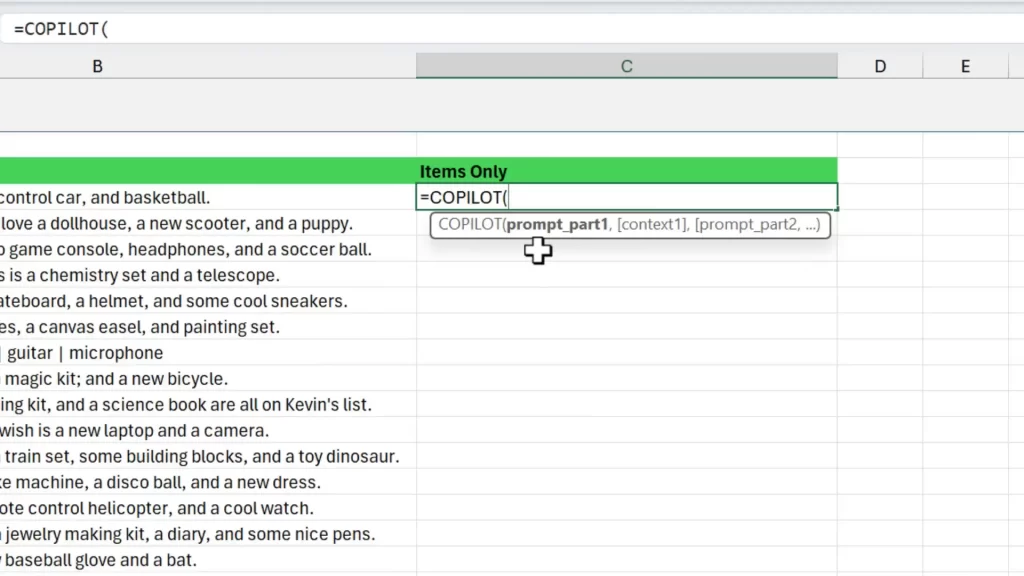
#1 Text Parsing: Extract items from messy lists
#1 Text Parsing: Extract items from messy lists
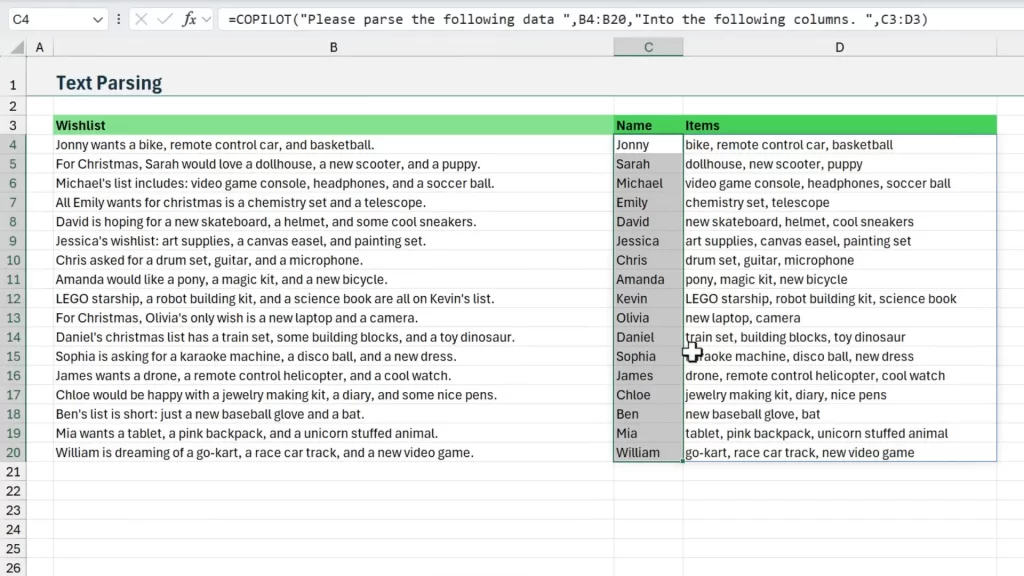
One of the first things I tried was parsing messy lists. The COPILOT Function in Excel is excellent at extracting items separated by inconsistent characters.
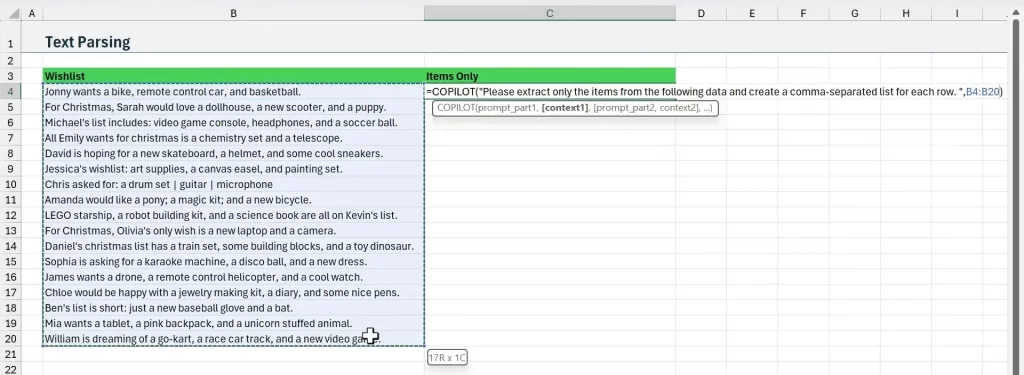
How I set it up
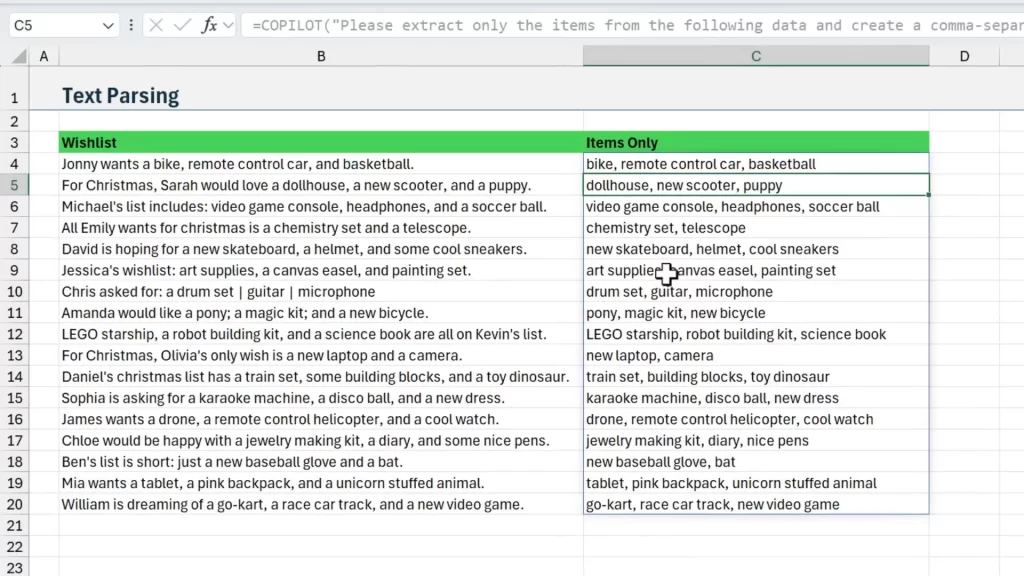
When you reference a whole range, COPILOT returns a spill range. This is efficient. It reduces the number of AI calls and helps stay within usage limits of the COPILOT Function in Excel.
#2 Return Multiple Columns: Shape output into columns
#2 Return Multiple Columns: Shape output into columns
The COPILOT Function in Excel can also return multiple columns. You just adjust the prompt to ask for separate columns.
Prompt tips
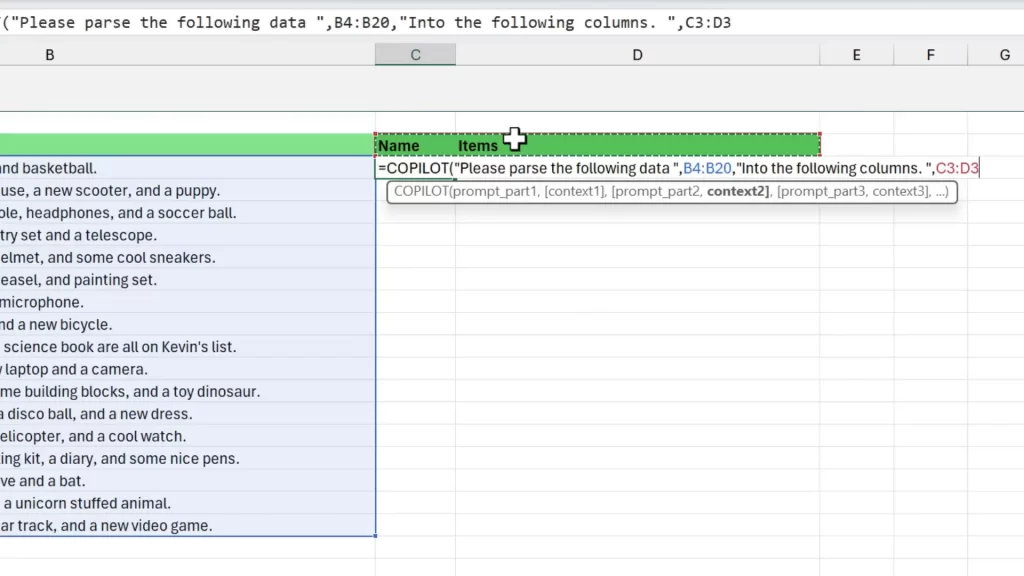
This makes it possible to transform messy lists into structured datasets. You avoid long nested formulas and manual cleanup.
#3 Potluck Planner: Balance practical suggestions
#3 Potluck Planner: Balance practical suggestions
Potlucks are a fun test case. They reveal how AI can balance categories and fill gaps. Use the COPILOT Function in Excel to categorize signups and recommend missing dishes.
Workflow
The COPILOT Function in Excel dynamically recalculates when you edit referenced cells. That means recommendations update as people change their entries.
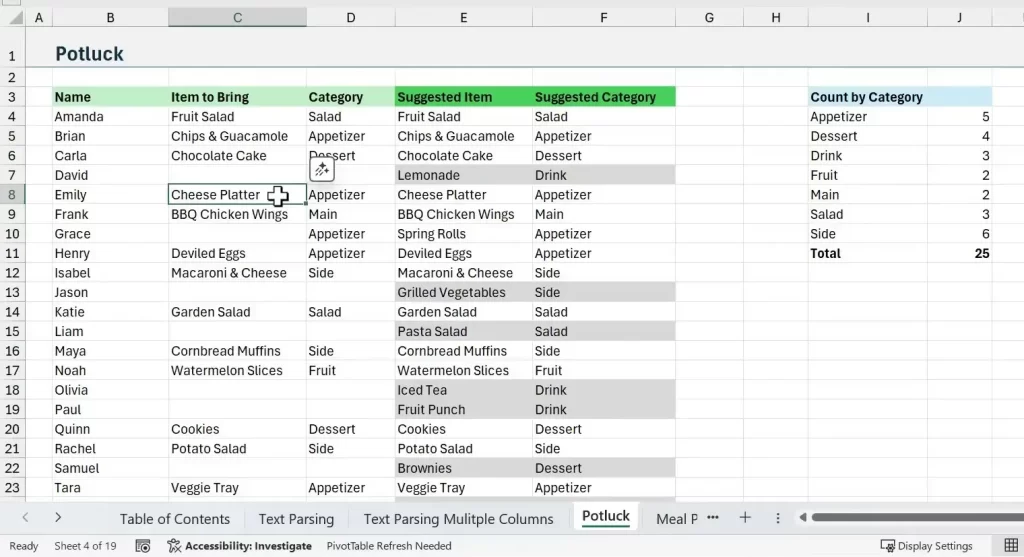
We can also reference the Spill Ranges from COPILOT in other formulas. In this example I used the new GROUPBY function to create a quick summary report that counts the number of dishes by category.
#4 Meal Planner: Cook with what you have
#4 Meal Planner: Cook with what you have
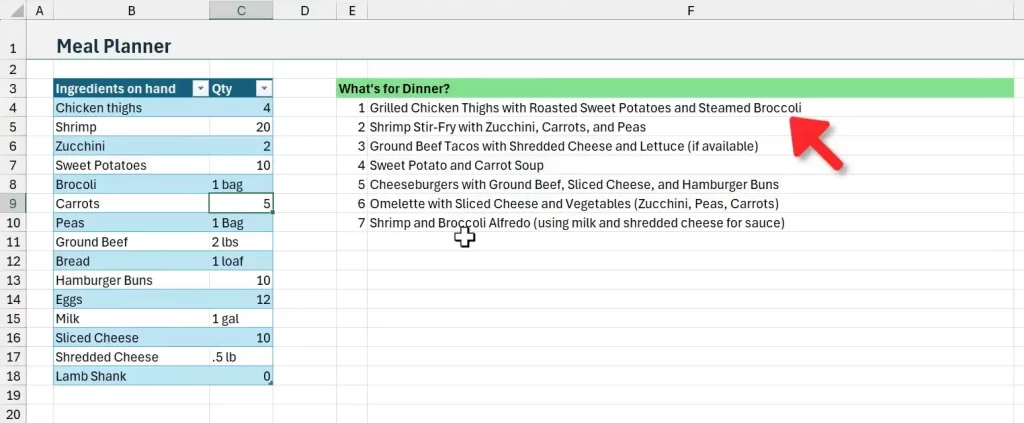
Use the COPILOT Function in Excel to convert an ingredients list into seven meal suggestions. The prompt includes quantities and a note about pantry essentials.
Setup steps
When quantities change, COPILOT recalculates the meal list. This makes the solution live and practical for weekly planning.
#5 Splitting Names: Tackle difficult name formats
#5 Splitting Names: Tackle difficult name formats
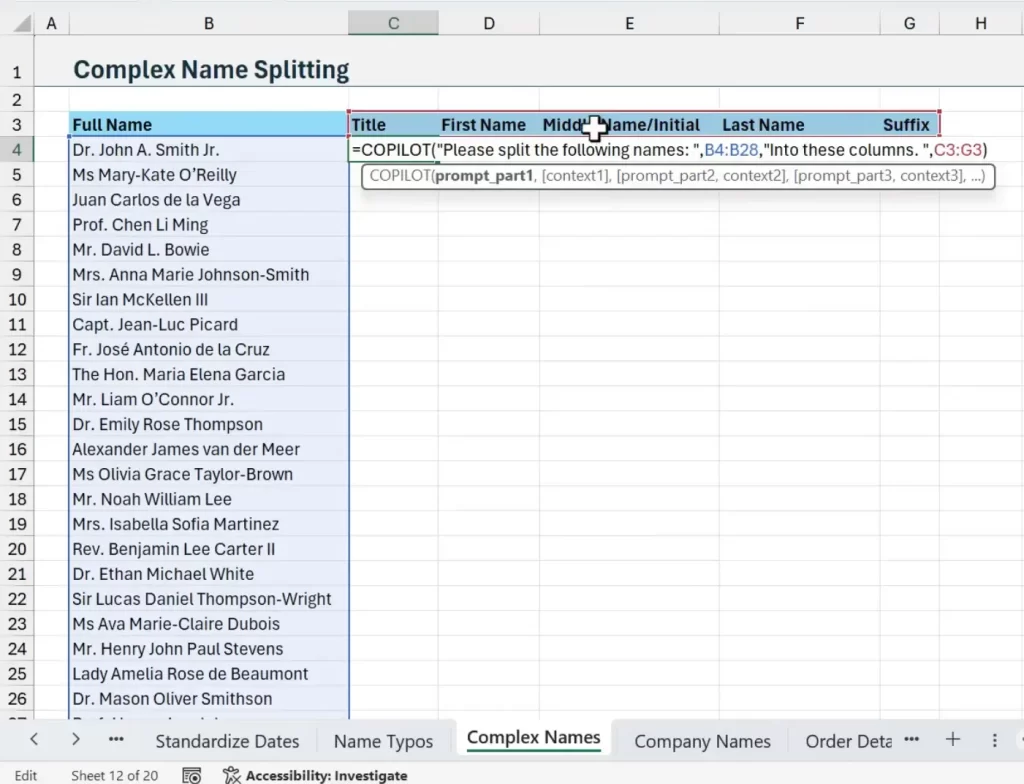
Splitting full names into title, first, middle, and last is a classic headache. The COPILOT Function in Excel handles diverse formats well.
Best practices
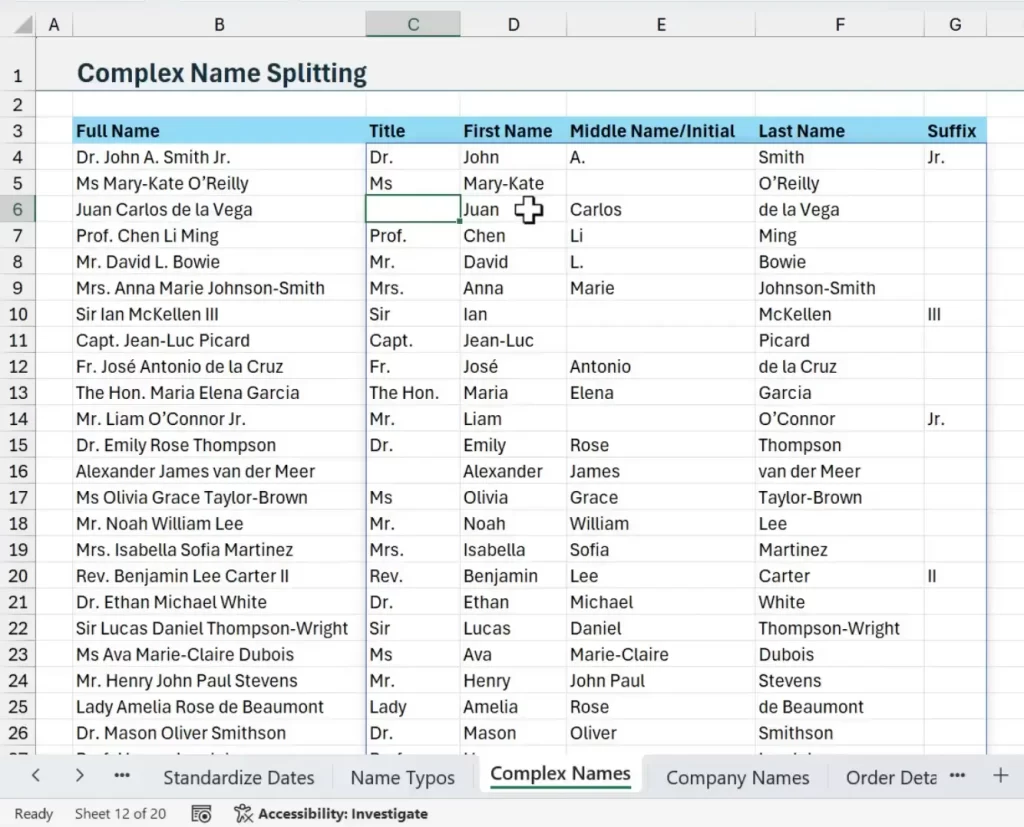
This approach saves hours when names include titles, suffixes, or multiple middle names. The COPILOT Function in Excel can spot patterns and place components in the correct columns.
#6 Trip Planner: Build an itinerary from stops and preferences
#6 Trip Planner: Build an itinerary from stops and preferences
Planning family trips becomes easier. Pass a list of stops, days, dietary needs, and interests to COPILOT.
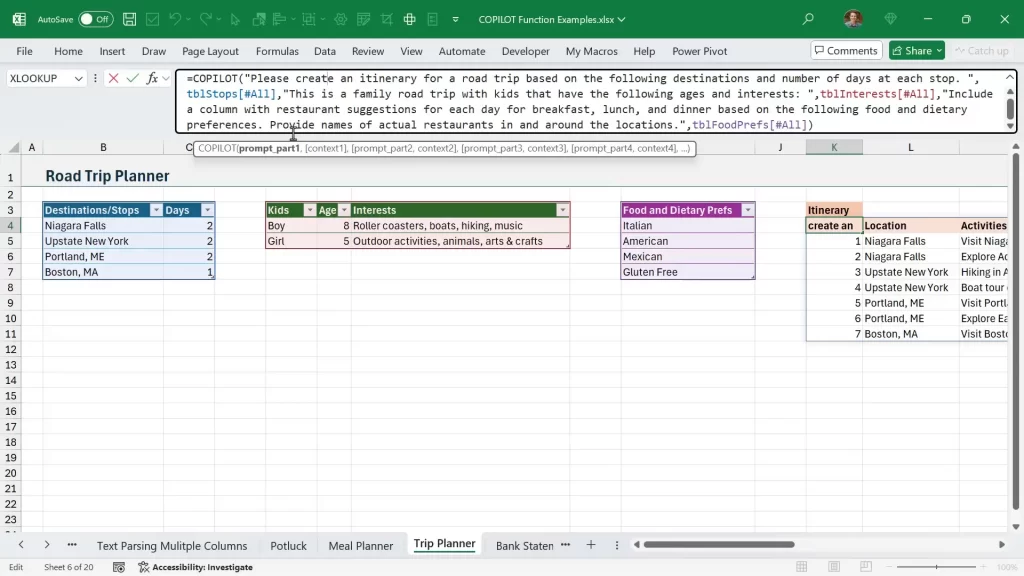
How it works
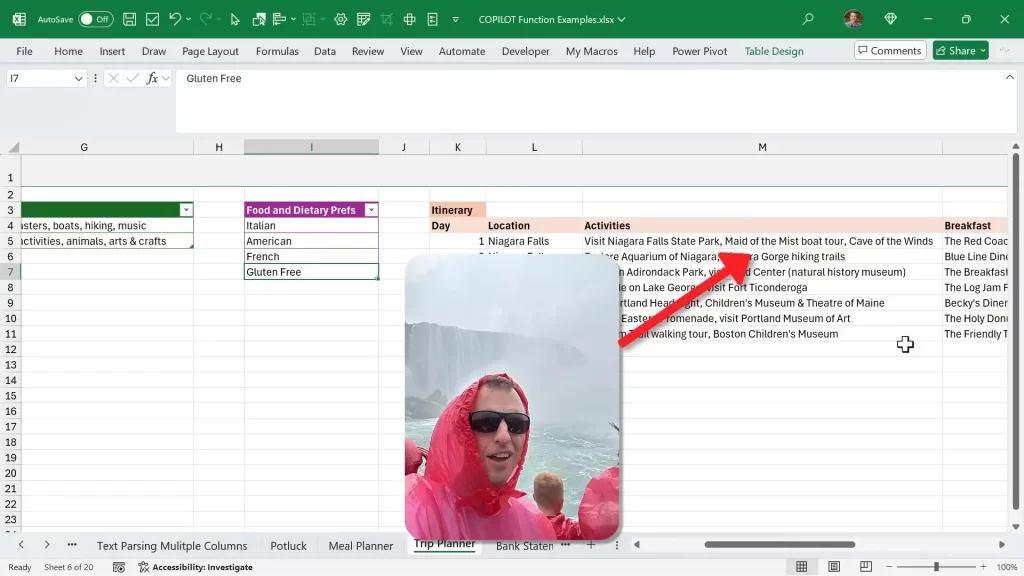
The result is a day-by-day table with activities and meal suggestions. It’s dynamic. Change preferences and the COPILOT Function in Excel updates the plan.
#7 Categorize Bank Statements: Automate expense mapping
#7 Categorize Bank Statements: Automate expense mapping
Bank statements often have inconsistent descriptions. Use COPILOT to assign categories for uncategorized items. Pair it with XLOOKUP and FILTER to create an efficient pipeline.
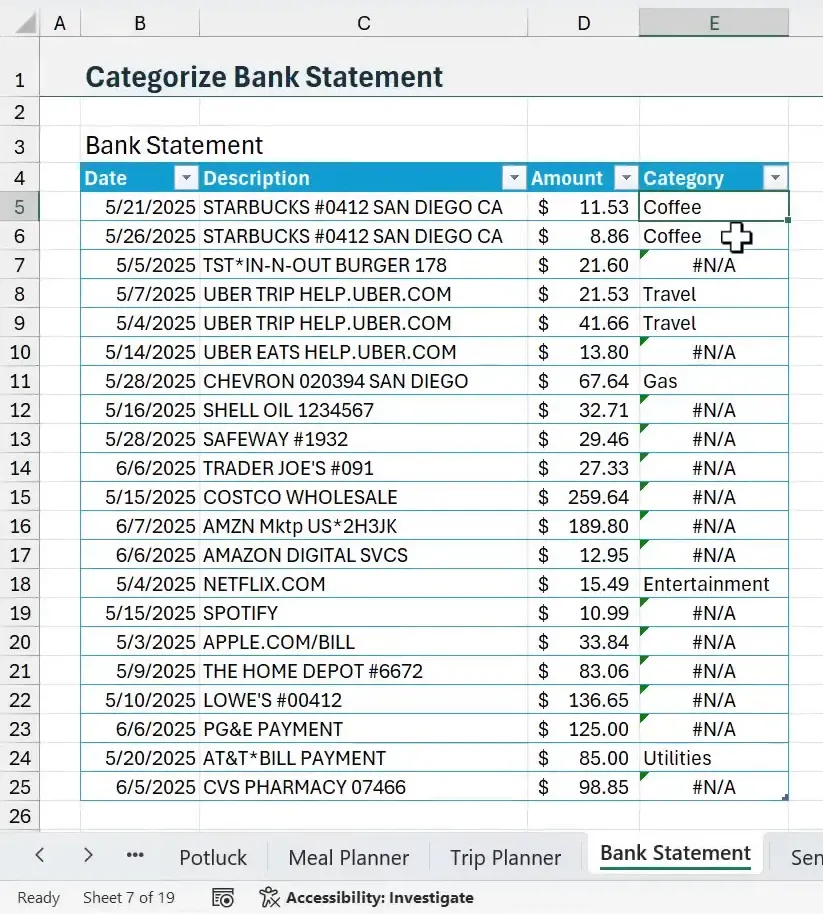
Pipeline steps
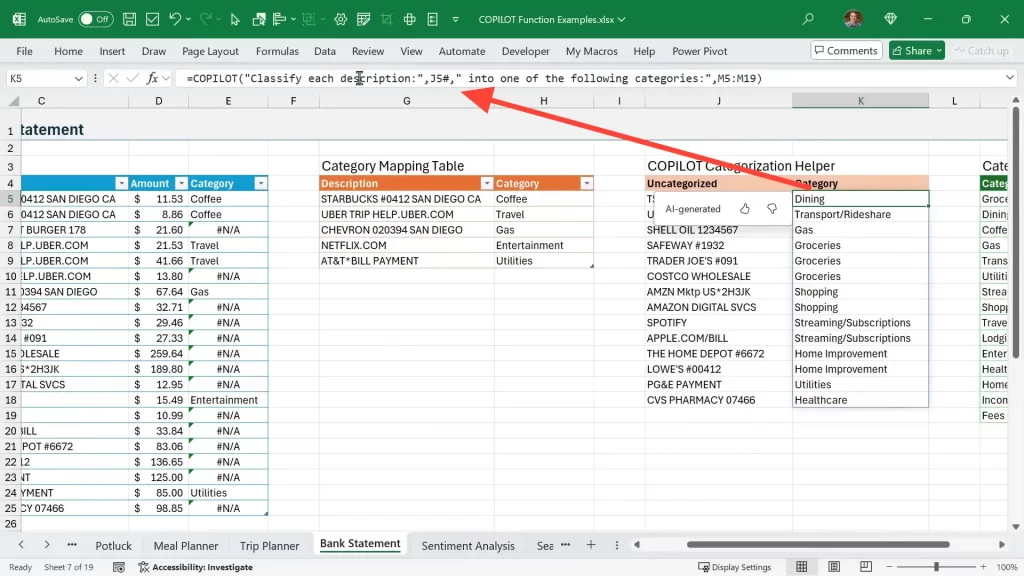
This method reduces manual categorization. It’s ideal for monthly bank statement processing. The COPILOT Function in Excel fills in gaps fast.
#8 Sentiment Analysis: Score product reviews
#8 Sentiment Analysis: Score product reviews
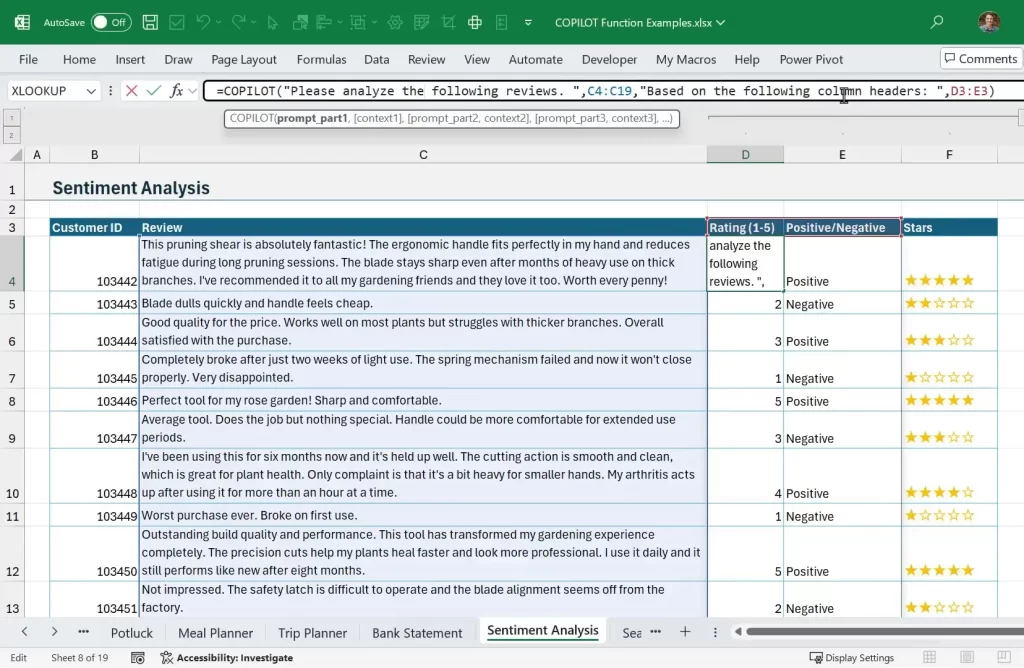
The COPILOT Function in Excel can analyze text sentiment. It returns structured outputs like a 1–5 rating and a positive/negative flag.
Prompt pattern
Combining COPILOT with simple Excel formulas lets you show stars or summaries for reporting. This is useful for product and customer feedback workflows.
#9 Seating Planner: Assign tables by interests
#9 Seating Planner: Assign tables by interests
Assigning seats for events is a complex optimization problem. COPILOT handles it by grouping attendees with similar interests.
How to use it
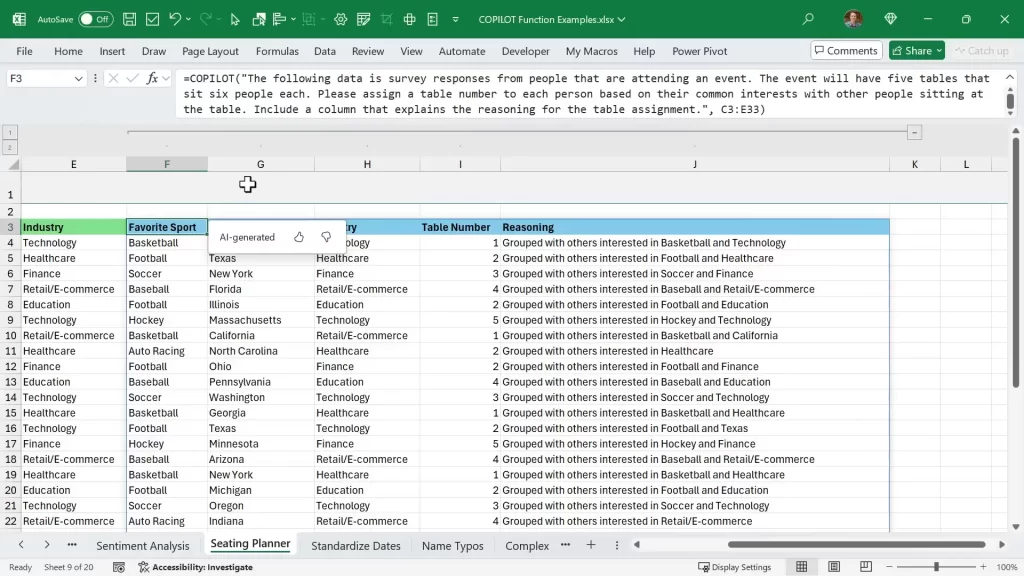
The COPILOT Function in Excel won’t always be perfect. But it delivers a smart first pass that saves a lot of manual effort.
#10 Standardize Dates: Normalize Multiple Date Formats
#10 Standardize Dates: Normalize Multiple Date Formats
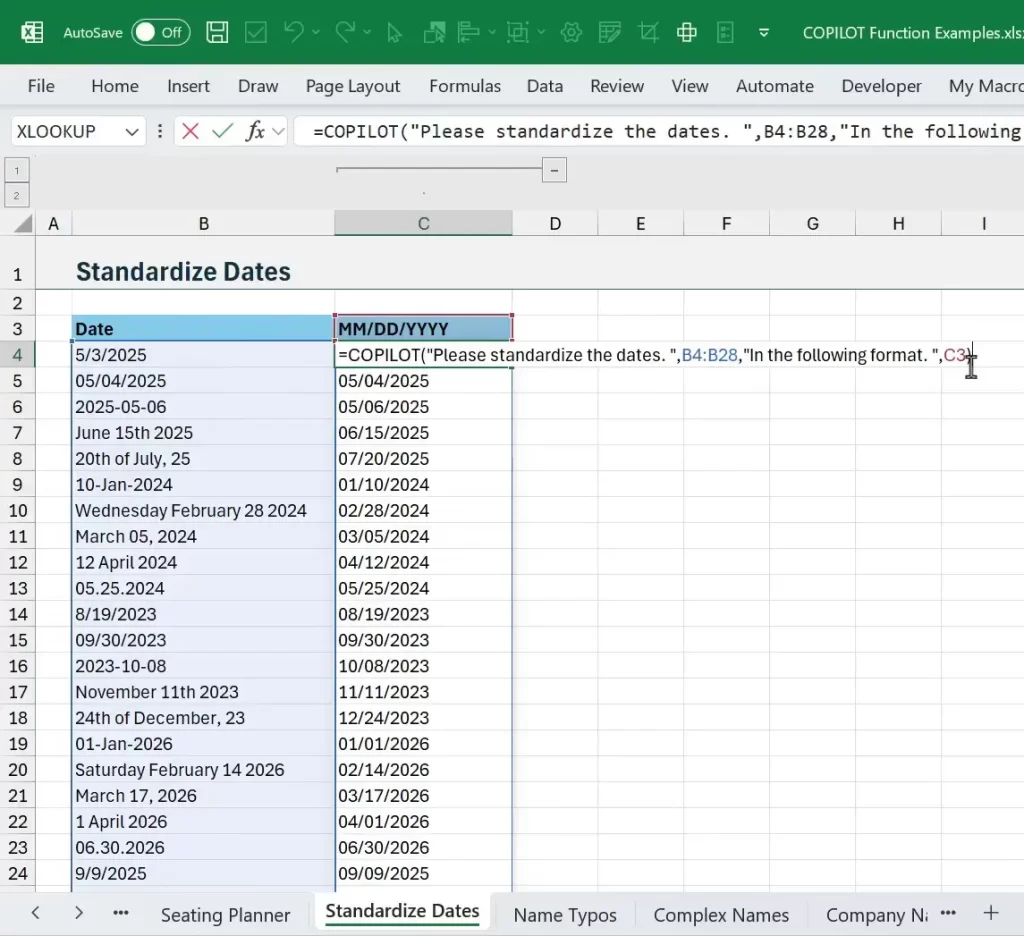
Dates arrive in many shapes. COPILOT can standardize them to any format you choose.
Simple setup
This eliminates messy text-date parsing formulas and speeds up downstream analysis. The COPILOT Function in Excel recognizes many regional formats too.
#11 Standardize Company Names: Clean Brand Variations
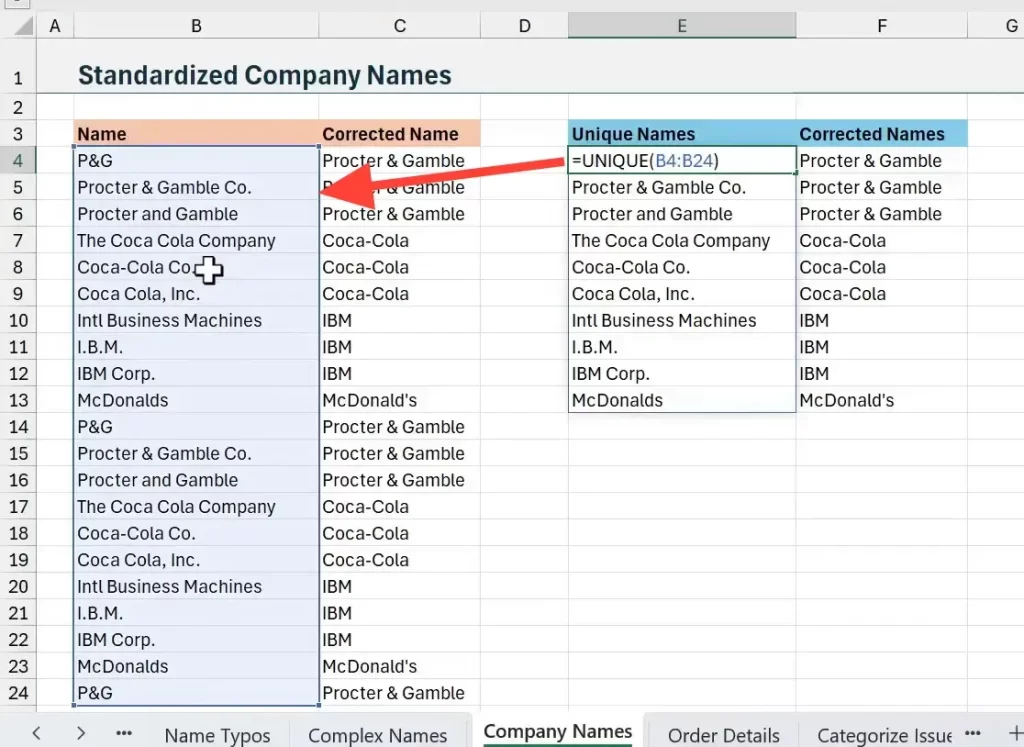
#11 Standardize Company Names: Clean Brand Variations
Company names often appear in multiple variations. COPILOT can propose a canonical name for each unique variant.
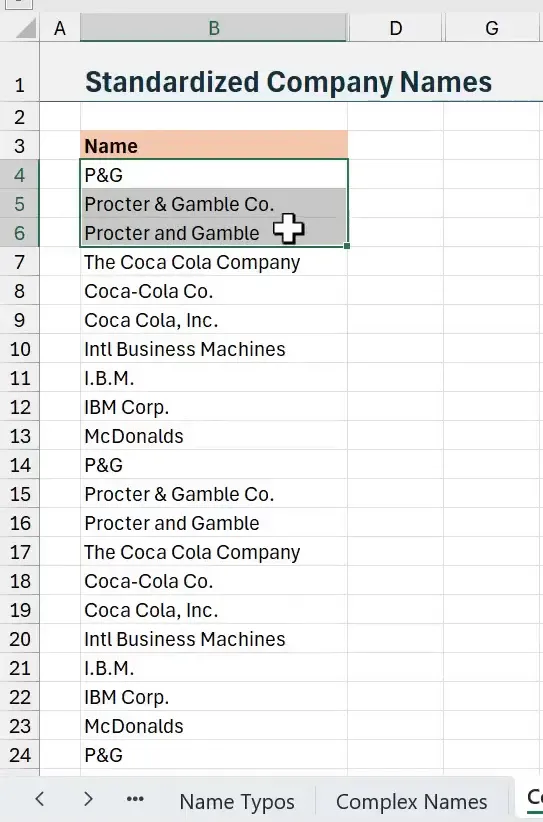
Efficient approach
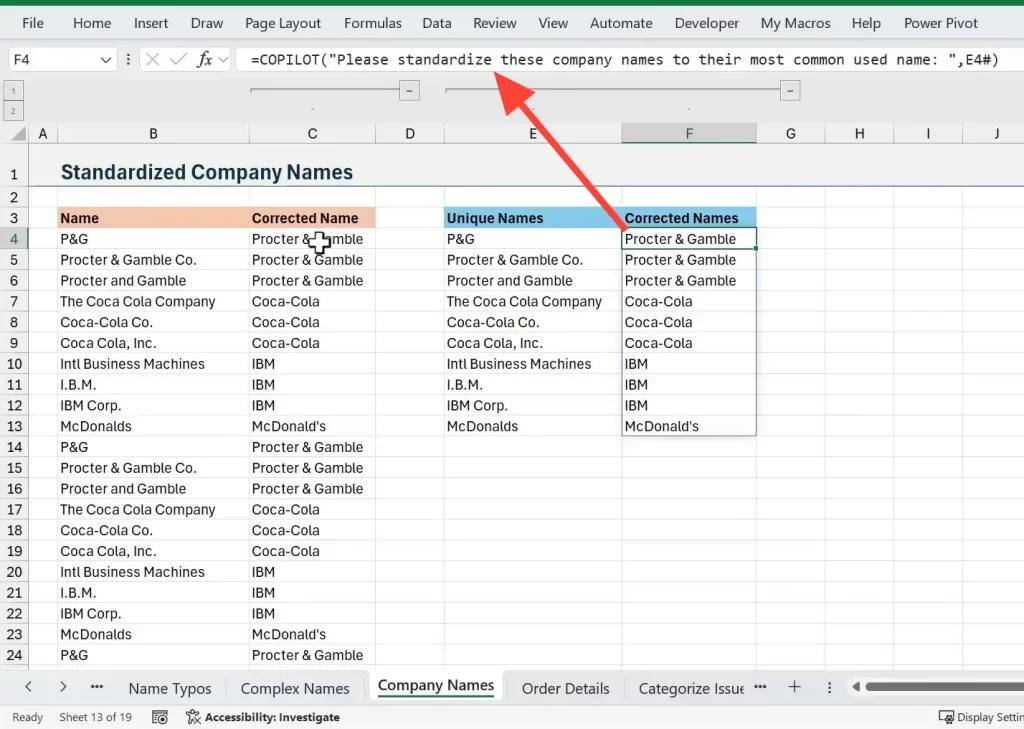
Keep COPILOT from processing thousands of rows by operating on unique values. That protects your usage limits and speeds up the workflow.
#12 Extract Order Details: Parse complex order strings
#12 Extract Order Details: Parse complex order strings
Orders often contain product, color, size, and quantity in one cell. COPILOT can parse those into separate columns.
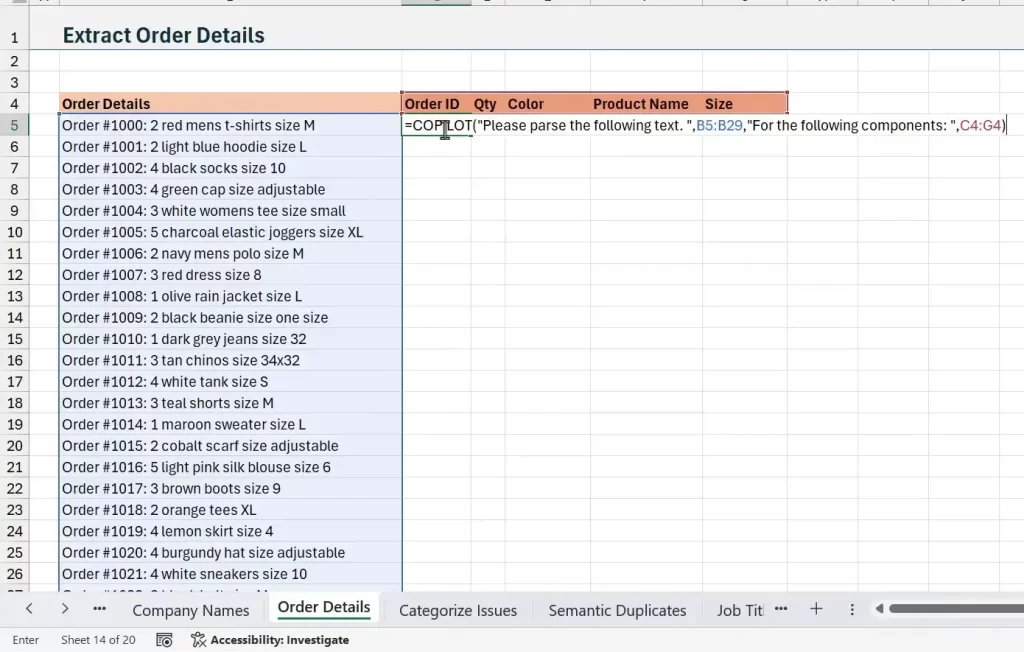
Why this helps
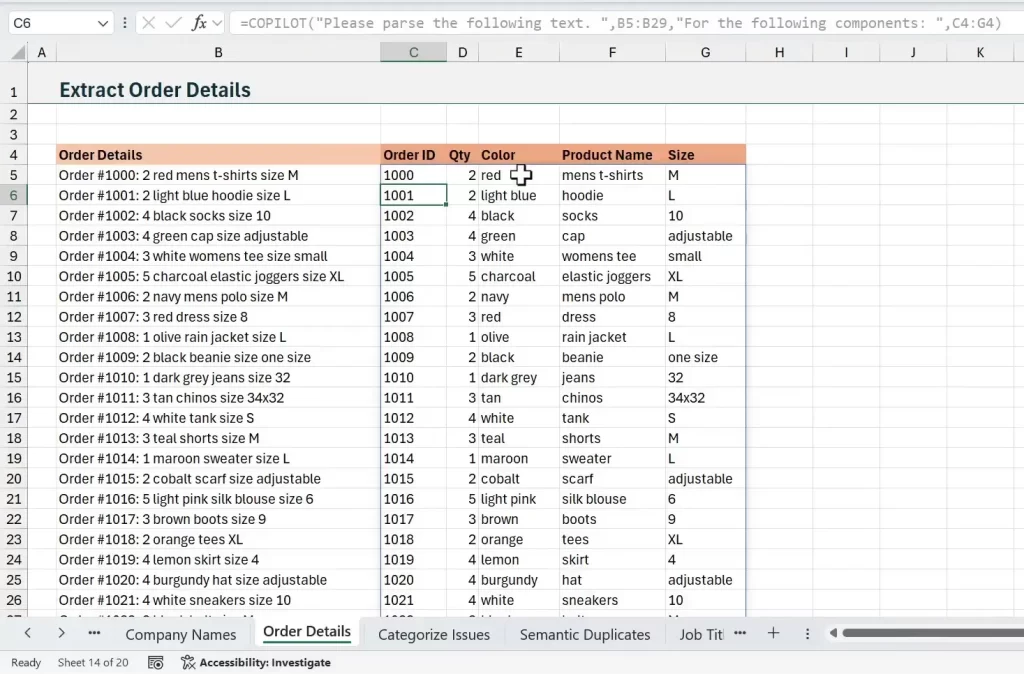
When you give clear column headers as context, COPILOT aligns parsed values to the correct fields.
#13 Categorize Support Issues: Map tickets to topics
#13 Categorize Support Issues: Map tickets to topics
Customer support tickets are messy. Use the COPILOT Function in Excel to assign each ticket to one of your predefined categories.
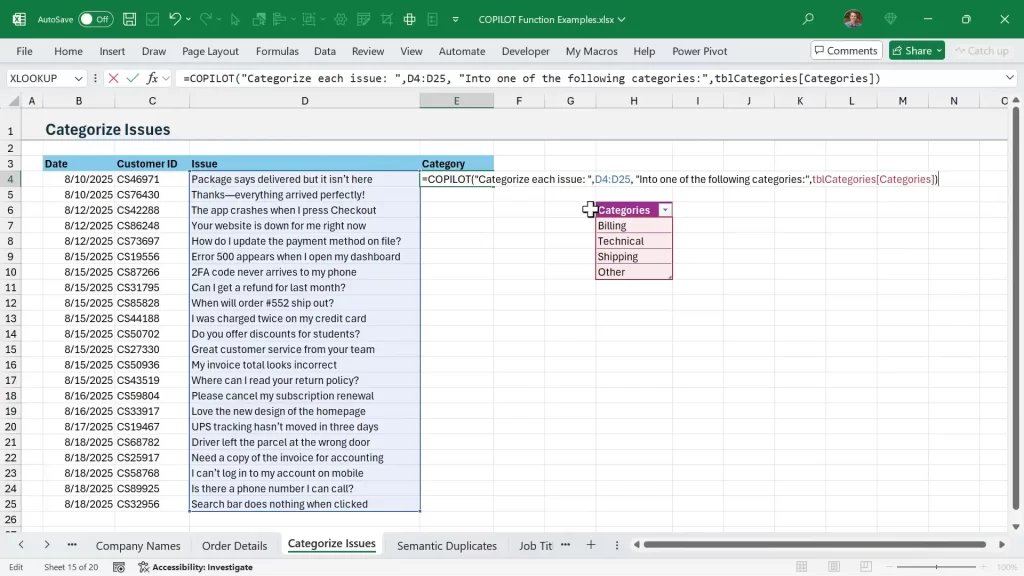
Steps
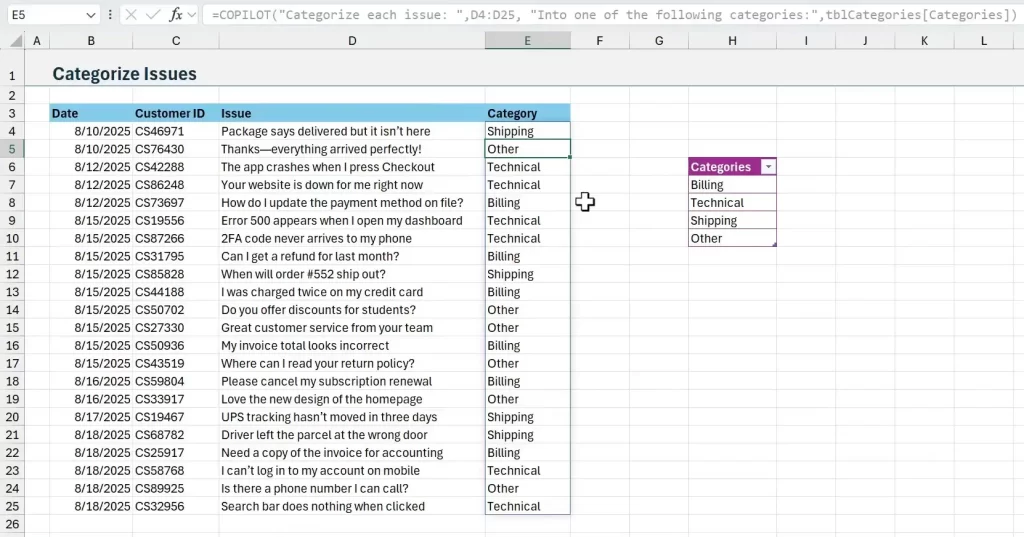
This speeds up the triage process and generates data you can use in dashboards and SLAs.
#14 Semantic Duplicates: Harmonize Product Variants
#14 Semantic Duplicates: Harmonize Product Variants
Semantic duplicates are variations that mean the same thing. For example, “iPhone 15 Pro” vs “iPhone 15 – Pro”. COPILOT can identify and standardize them.
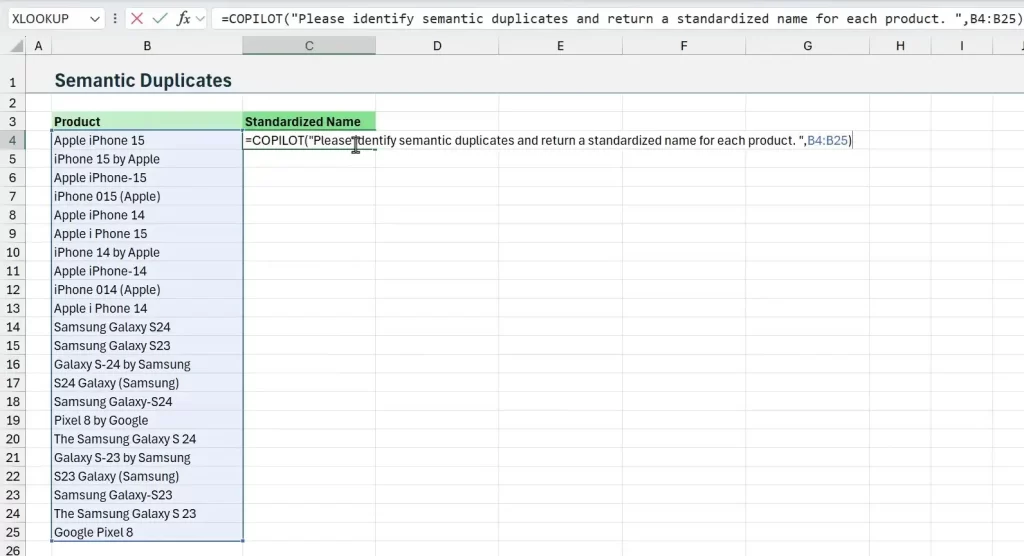
Use case
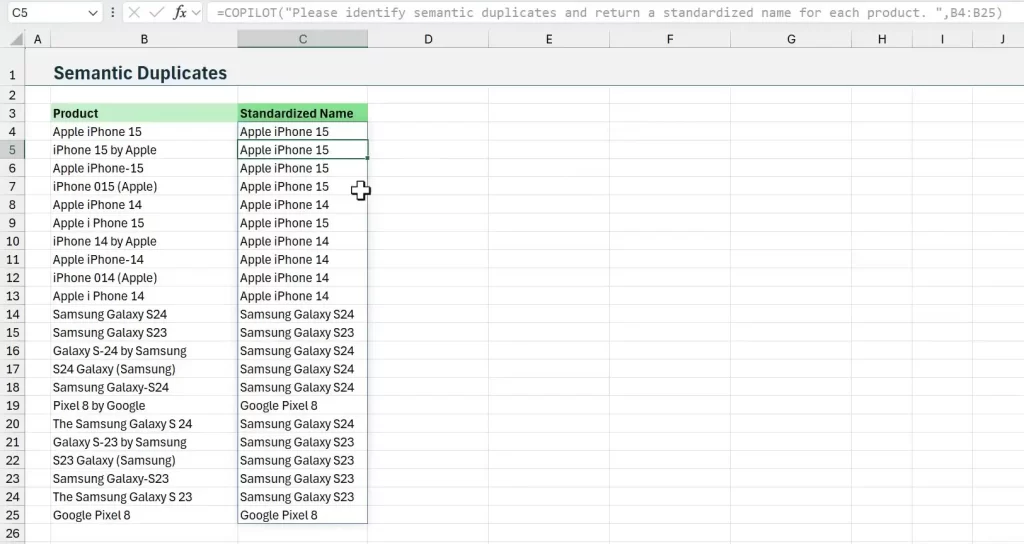
This is critical when product analytics depend on consistent naming. The COPILOT Function in Excel understands context and human variations.
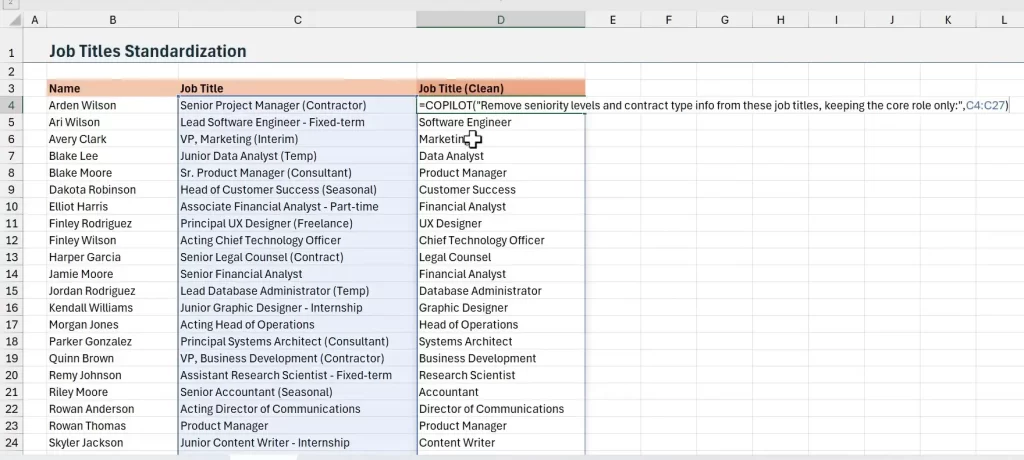
#15 Shorten Job Titles
HR lists include long job titles with seniority and contract notes. Use COPILOT to extract core roles so you can group and count employees.
How I ran it
After cleanup, you can quickly create headcount summaries. The COPILOT Function in Excel makes grouping straightforward.
#16 Address Cleanup: Standardize to USPS or local style
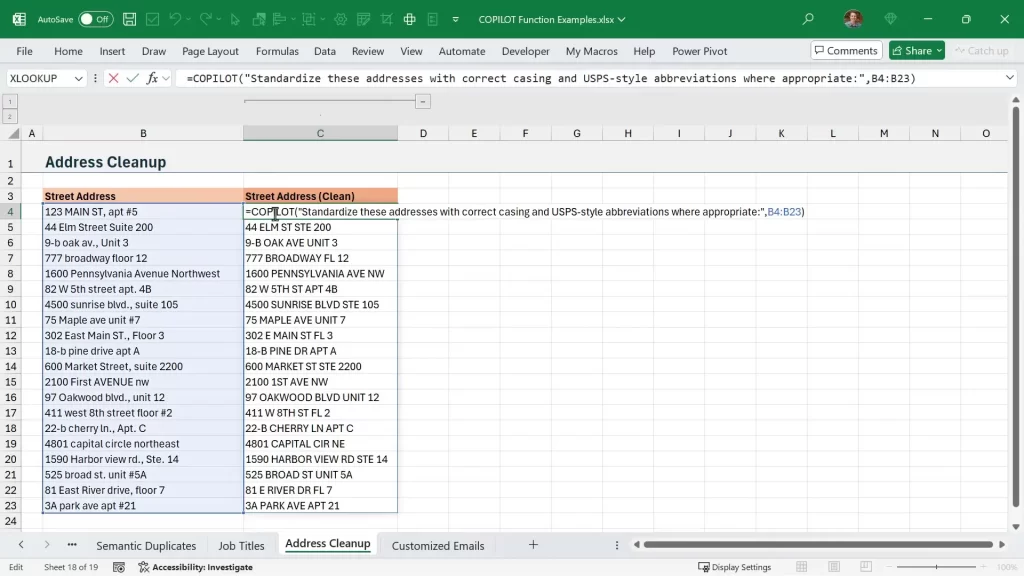
#16 Address Cleanup: Standardize to USPS or local style
Addresses are a classic data mess. COPILOT can standardize them to USPS style or to your preferred local format.
Practical tips
Use the results to improve geocoding, mail merges, and logistics.
#17 Customized Emails: Recommend products and draft outreach
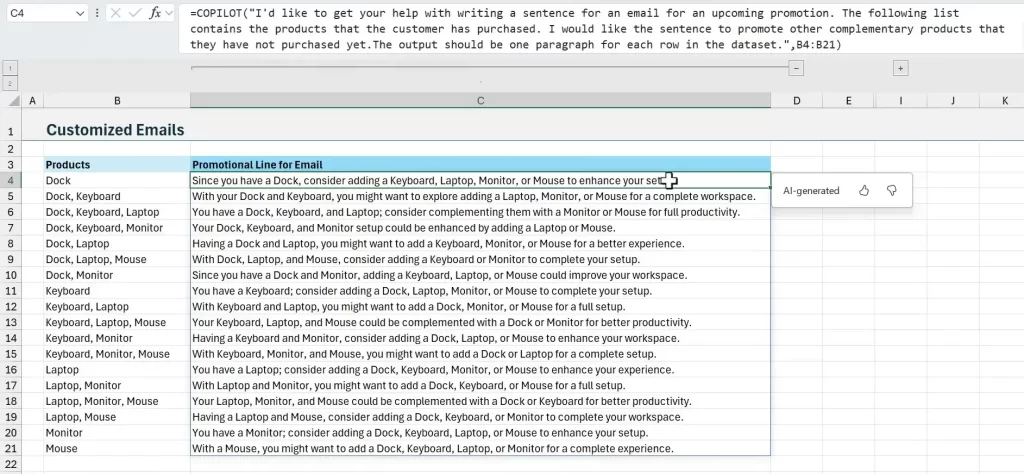
#17 Customized Emails: Recommend products and draft outreach
Use the COPILOT Function in Excel to generate personalized email copy. Base suggestions on historical purchase combinations.
Workflow
This creates sales-ready drafts you can review, personalize, and send. The COPILOT Function in Excel helps scale outreach without losing context.
Practical Tips and Best Practices
Practical Tips and Best Practices
Working with the COPILOT Function in Excel is straightforward. Follow a few best practices to get reliable results and avoid wasted calls.
Key recommendations
These practices conserve quota and improve reliability. They also make it easier to integrate output into formulas like XLOOKUP, FILTER, and GROUP BY.
Limitations and Things to Watch
Limitations and Things to Watch
The COPILOT Function in Excel is in beta at the time of this posting. There are usage limits and availability constraints to keep in mind.
Final Thoughts and Next Steps
The COPILOT Function in Excel is a powerful tool for professionals. It turns messy, manual tasks into a few prompts and frees time for higher-value work.
My recommendation is to start small. Try it on a unique list or a single cleanup task. Learn prompt patterns and then scale. The COPILOT Function in Excel is best used as an augmentation to your existing formulas and processes.
It's also good to keep your prompts clear, reference ranges, and validate outputs. These simple rules help you get reliable results. Then try it on your toughest repetitive task and see what it can do.
If you build repeatable patterns, you can combine COPILOT outputs with formulas like XLOOKUP, FILTER, and GROUP BY to create robust automations and workflows.
Source: excelcampus.com

12/11/2025


