
- Training
- Service
- Promotion
- Schedule
- Testing Center
- News
- Contact
4/27/2022


Create a flow from a template
With the hundreds of triggers, actions and connectors, sometimes the hardest part about Power Automate can be figuring out where to get started. To help you get started, there are countless flow templates available to help you build a solution. To see all of the available templates, you can sign into Power Automate and select Templates from the left-hand menu.

From here, you can search by a specific word or phrase like "Dataverse" or you can browse based on category.
If you click on a specific template, you will see details about the template including the data sources it will connect to.
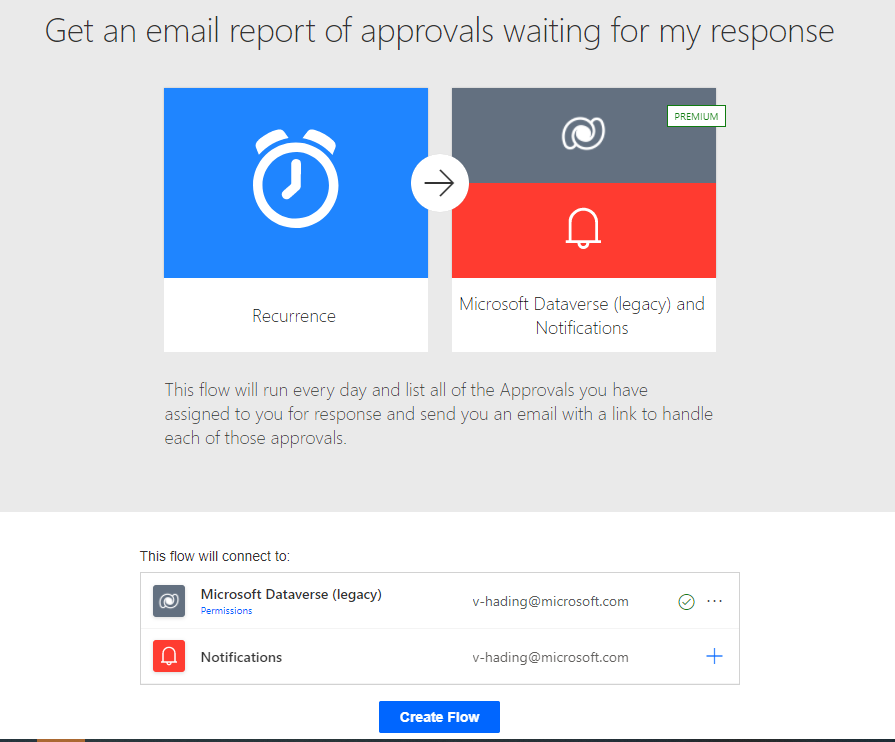
Templates are great for getting started and support being customized. So you can take a template and extend it to meet your business needs.
Create a flow to save email attachments to OneDrive for Business
It can be time consuming to search for attachments through email at Contoso Manufacturing. To alleviate those time-consuming searches, you can build a flow that stores all of your email attachments in a folder on your Microsoft OneDrive for Business account. Thankfully, there is a template to help you get started.
1. From the list of templates search for "Save Office 365 email attachments to OneDrive for Business" and then click on the template to start using it.
2. Click Continue at the bottom of the screen to create the flow.
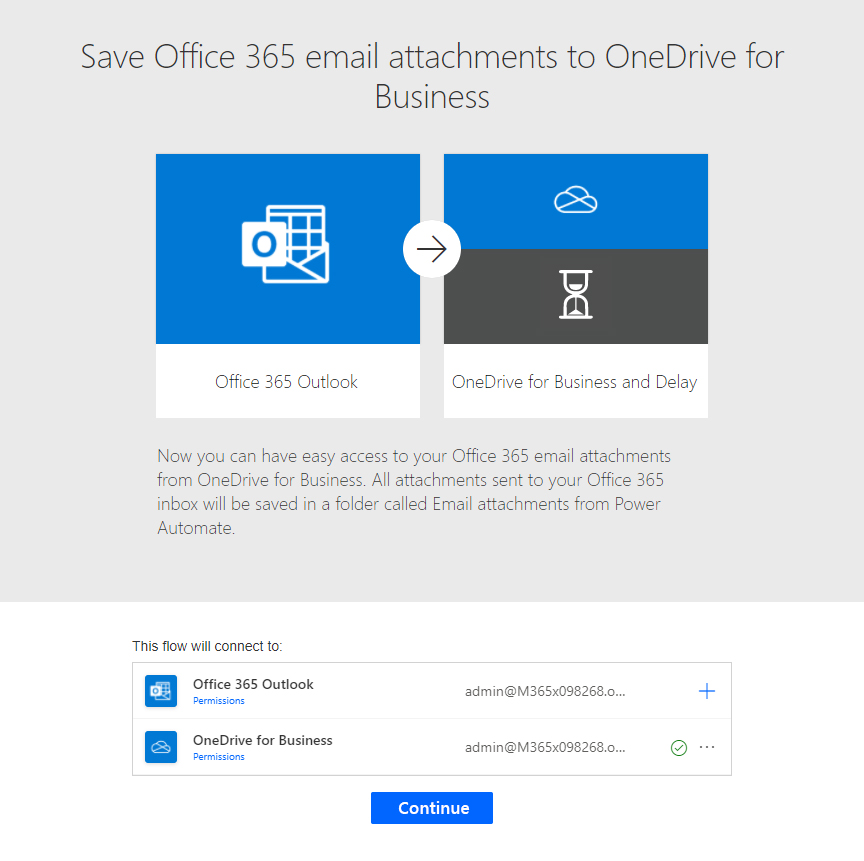
Save Office 365 email attachments to OneDrive for Business is one of the one-click templates, in which you can answer questions that are necessary to build the flow, so that you don't have to write a line of code.
On the template graphic, there's a description of what the template does and what it needs to succeed.
You'll be asked to provide credentials for the Microsoft Office 365 Outlook and Microsoft OneDrive for Business services. If you regularly use both services, you'll already be signed in.
Now that the flow is created, you can click Edit to see the details of what was created for you.
From the flow builder, you can now click through the trigger and the actions to see how this flow was built for you. As you can see, there is no code and everything is accessible to customize or extend to better meet your business needs. For example, maybe try configuring the flow to only process for emails from your boss. Here is a hint: Click on Show advanced options for the On new email trigger.
Now that you have seen how easy it is to start from a template, let's talk about a couple of key concepts.
Important concepts in Microsoft Power Automate
Keep these concepts in mind when building flows:
Some examples of types of actions you can have in a flow include:
You can also perform data operations in your flow, such as Compose, Create CSV table, Join, or Select. These concepts will come into play later when you build your own flows from scratch.
Trigger or run the flow
With Power Automate, you do not think of running a flow the same way as you do with running a Power Apps app. Instead, you perform the activity that triggers the flow to run. In the case of the previous flow, instead of periodically running the flow manually, it would automatically run every time a new email is received with an attachment. This is because the flow has the trigger that determines when it should run.
When defining triggers, there are a few different types:

12/11/2025


