Create and add a signature to messages in Outlook
8/10/2020
In Outlook, you can create one or more personalized signatures for your email messages. Your signature can include text, images, your electronic business card, a logo, or even an image of your handwritten signature. You can set up Outlook so that signatures are automatically added to all outgoing messages or create your signature and add it to messages on a case-by-case basis.
Create your signature and choose when Outlook adds a signature to your messages
Important: If you have a Microsoft Microsoft 365 account, and you use Outlook and Outlook on the web or Outlook on the web for business, you need to create a signature in both products. To create and use email signatures in Outlook on the web, see Create and add an email signature in Outlook.com
Instruction:
- Open a new email message.
- On the Message menu, select Signature > Signatures.
Depending on the size of your Outlook window and whether you're composing a new email message or a reply or forward, the Message menu and the Signature button might be in two different locations.


- Under Select signature to edit, choose New, and in the New Signature dialog box, type a name for the signature.
- Under Edit signature, compose your signature. You can change fonts, font colors, and sizes, as well as text alignment. If you want to create a more robust signature with bullets, tables, or borders, use Word to format your text, then copy and paste the signature into the Edit signature box. You can also use one of our pre-designed templates for your signature. Download the templates in Word, customize them with your personal information, and then copy and paste them into the Edit signature box.

- Under Choose default signature, set the following options for your signature:
- In the E-mail account drop-down box, choose an email account to associate with the signature. You can have different signatures for each email account.
- In the New messages drop-down box, select one of your signatures if you want your signature added to all new messages by default. If you don't want to automatically add a signature to new messages, choose (none).
- In the Replies/forwards drop-down, select one of your signatures if you want your signature to appear in the messages you reply to and forward. Otherwise, accept the default option of (none).
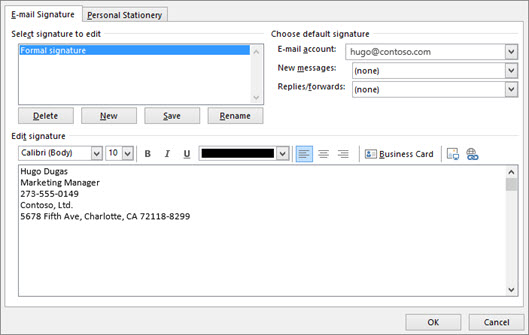
- Choose OK to save your new signature and return to your message. Outlook doesn't add your new signature to the message you opened in Step 1, even if you chose to apply the signature to all new messages. You'll have to add the signature manually to this one message. All future messages will have the signature added automatically. To add the signature manually, select Signature from the Message menu and then pick the signature you just created.
Add a logo or image to your signature
If you have a company logo or an image to add to your signature, use the following steps.
- Open a new message and then select Signature > Signatures.
- In the Select signature to edit box, choose the signature you want to add a logo or image to.
- Select the Image icon
 , locate your image file, and select Insert.
- To resize your image, right-click the image, then choose Picture. Select the Size tab and use the options to resize your image. To keep the image proportions, make sure to keep the Lock aspect ratio checkbox checked.
- When you're done, select OK, then select OK again to save the changes to your signature.


