
- Training
- Service
- Promotion
- Schedule
- Testing Center
- News
- Contact
6/7/2022


Design studio page editor
After adding the webpages, you need and managing their hierarchy in the site map, you can add various components. The WYSIWYG design studio page editor is part of the Pages workspace. Use the editor to add and edit the components you need within the canvas.
Using the editor
To use the editor:
1. Open the design studio to edit the content and components of the portal.
2. Go to the Pages workspace.
3. Select the page where you'd like to add the component or section.
4. To add a section, hover over any editable section area, and then select the plus sign (+). You can then choose between six section layout options.
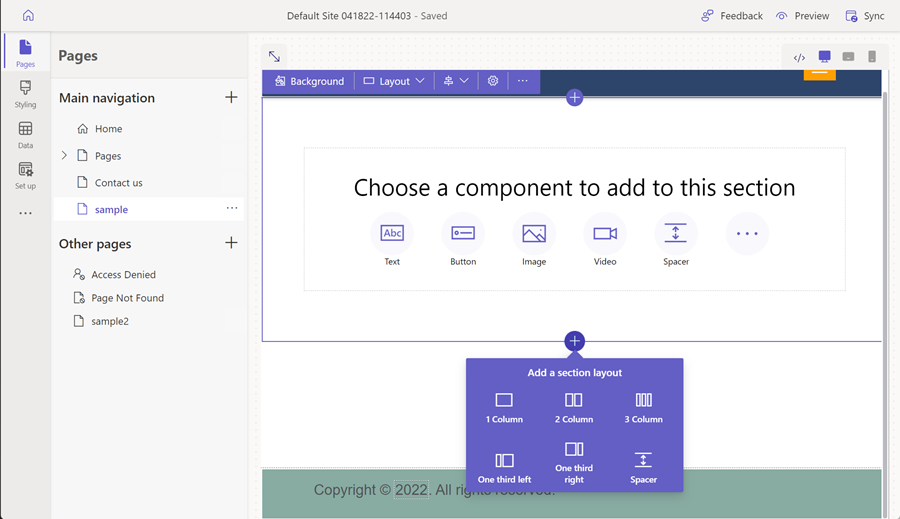
5. To add a component, hover over the section where you'd like to place the component, and then select +. You can then choose between the available components.

6. To delete a component, choose the component on the canvas and then select Delete.
For a more immersive editing experience, you can use the full-screen editing mode by selecting the double arrow icon in the upper-right corner of the editor.
All sections and components allow for in-context editing. You can edit any section or component directly from the canvas.
Source: https://docs.microsoft.com

12/11/2025


