
- Training
- Service
- Promotion
- Schedule
- Testing Center
- News
- Contact
8/13/2020


There are times when you’ll want to delete an appointment or meeting (or a series of them) from your calendar, such as when a project comes to a close and there is no reason to meet any longer.

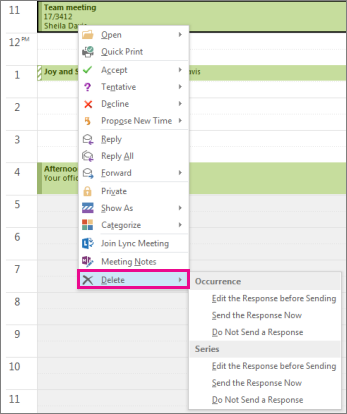
Right-click the item, choose Delete, and then click an option.
Cancelling a meeting is different from deleting a meeting. You might cancel a meeting because you’ll be out of town while the meeting usually takes place, but you will want to continue to meet when you return. For information about cancelling a meeting, see Cancel a meeting.

12/11/2025


