
- Training
- Service
- Promotion
- Schedule
- Testing Center
- News
- Contact
8/11/2020


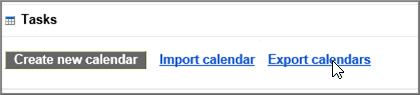
If you want to import your Google Calendar into Outlook, you don’t have to re-enter all of your appointments. Instead, export your Google Calendar to a file, and then import them into Outlook on your desktop. It’s not a one-click button but there’s a wizard that’ll walk you through the steps.
Step 1: Export your Google Calendar


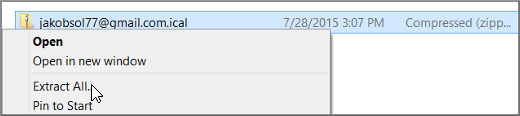
The extracted file will look something like the this one:
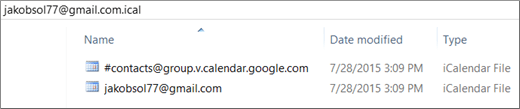
If you have multiple Google calendars, you'll see an ICS file for each one.
Now you're ready to import your Google Calendar into Outlook.
Step 2: Import your Google Calendar to Outlook
Do this step for each Google Calendar you want to import to Outlook.


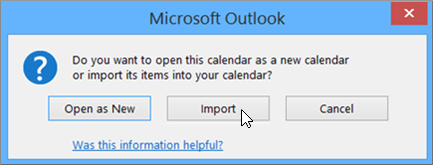
Here's a video that shows how to import Google Calendar into Outlook:

12/11/2025


