
- Training
- Service
- Promotion
- Schedule
- Testing Center
- News
- Contact
1/25/2022


Excel for the web has evolved into a full-featured modern spreadsheet app that can effectively support your daily work. Today, that experience continues to improve with the new Conditional Formatting capability,making it easier for you to manage, edit, and create formatting rules based on specific criteria, to help youquickly spot trends and insight from your data.
Manage rules in a new side pane
With the new side pane, you can manage the rules while seeing the formatting result on the grid. Simply hover the mouse pointer over a rule to see the range it refers to.
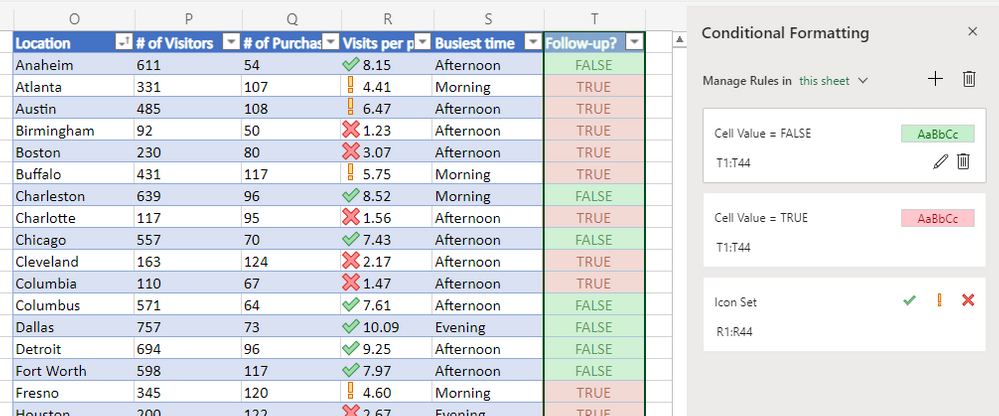
Manage rules in a new side pane
You can manage the rules for the current selection or the entire sheet with simple dropdown.
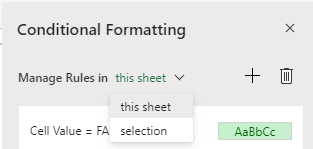
Manage rules in sheet or selection
Edit rules or add new ones
In addition to managing rules, you can also edit or add new ones in Excel for the web.
To edit a rule, click on the Edit button in the side pane.
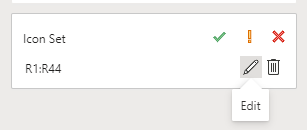
Edit rules
To add a new rule, click on the New Rule button in the side pane or use the Conditional Formatting menu in the ribbon.
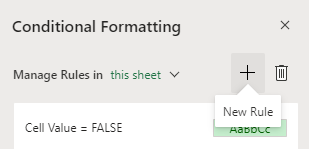
Add new rules
In the new rule editor, you will find the familiar rule types like those in Excel desktop.
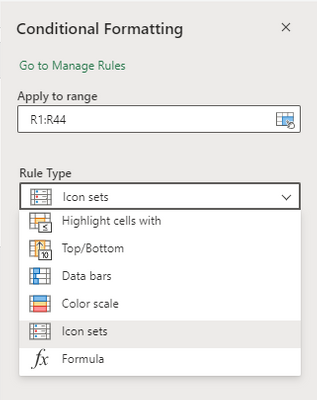
Rule types
Use the straightforward dropdowns to specify the criteria and choose a format.

Formatting criteria
New rule types
We have also added new rule types to Excel for the web, continuing to close the gap with desktop.
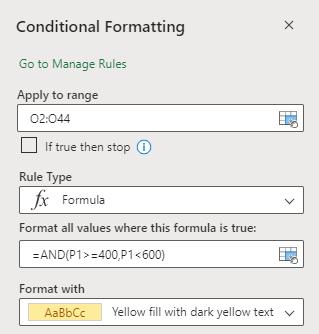
Formula rule type
Source: techcommunity.microsoft.com

12/11/2025


