
- Training
- Service
- Promotion
- Schedule
- Testing Center
- News
- Contact
11/6/2020


Try to locate the source of the error
Select the error
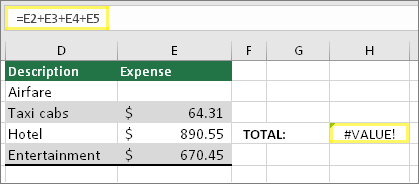
First select the cell with the #VALUE! error.
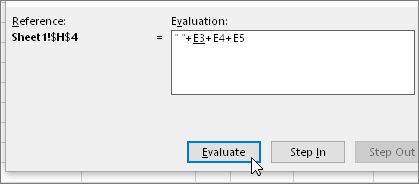
Click Formulas > Evaluate Formula > Evaluate. Excel will step through the parts of the formula individually. In this case the formula =E2+E3+E4+E5 breaks because of a hidden space in cell E2. You can't see the space by looking at cell E2. However, you can see it here. It shows as " ".
Warning: IFERROR will hide all errors, not just the #VALUE! error. Hiding errors isn't recommended because an error is often a sign that something needs to be fixed, not hidden. We don't recommend using this function unless you are absolutely certain your formula works the way that you want.
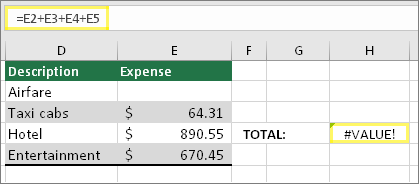
Here’s an example of a formula that has a #VALUE! error due to a hidden space in cell E2.
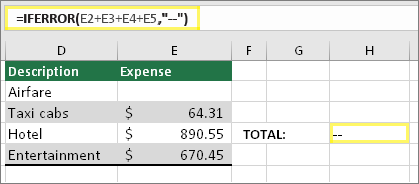
And here’s the same formula with IFERROR added to the formula. You can read the formula as: "Calculate the formula, but if there's any kind of error, replace it with two dashes." Note that you could also use "" to display nothing instead of two dashes. Or you could substitute your own text, such as: "Total Error".
Unfortunately, you can see that IFERROR doesn’t actually resolve the error, it simply hides it. So be certain that hiding the error is better than fixing it.
Your data connection may have become unavailable at some point. To fix this, restore the data connection, or consider importing the data if possible. If you don't have access to the connection, ask the creator of the workbook to make a new file for you. The new file ideally would only have values, and no connections. They can do this by copying all the cells, and pasting only as values. To paste as only values, they can click Home > Paste > Paste Special > Values. This eliminates all formulas and connections, and therefore would also remove any #VALUE! errors.
Source: Support.microsoft.com

12/11/2025


