
- Training
- Service
- Promotion
- Schedule
- Testing Center
- News
- Contact
8/13/2020


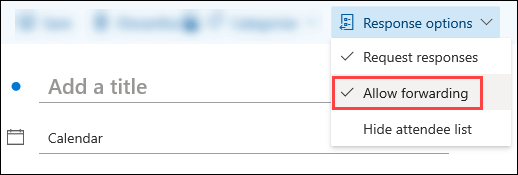
As a meeting organizer, you can choose whether to allow attendees to forward a meeting invitation to others. When creating a meeting request, you can only use this option if your mailbox is hosted in Microsoft 365 or in Exchange Server 2019.
Notes:
When you create or edit a meeting, you can choose to allow or prevent forwarding of the meeting invitation. The option to allow forwarding is turned on by default.
However, if you turn off this option, attendees included on the meeting invitation won't be able to forward the meeting to others. As the meeting organizer, you'll still be able to add attendees by editing the meeting.
 .
.
 .
.
 from Attendees.
|
Outlook client |
Currently supported |
|
Outlook on the web |
For Microsoft 365 and Exchange 2019 users |
|
Outlook for Windows |
For Microsoft 365 users |
|
Outlook for Mac |
For Microsoft 365 users |
|
Outlook for iOS |
Not supported yet |
|
Outlook for Android |
Not supported yet |
Note: To see what version of Outlook for Windows or Outlook for Mac that you're using, in Outlook go to About Outlook by selecting File > Office Account.

12/11/2025


