
- Training
- Service
- Promotion
- Schedule
- Testing Center
- News
- Contact
11/13/2020


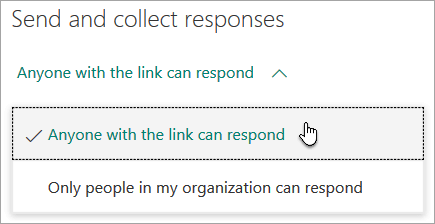
Choose who you want to respond to your form
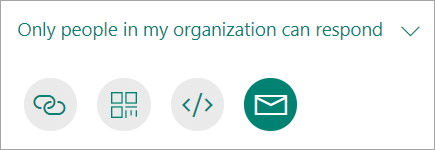
In the Share pane under Send and collect responses, select the drop-down list to see options for whom you want to collect responses from.
Note: We are gradually rolling out this option, which will be available soon.
Send a link to your form
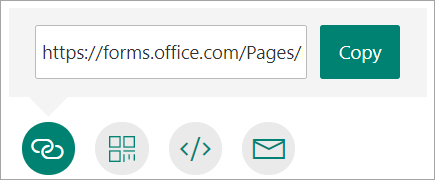
If you don’t have the email addresses of the people you want to view your form or quiz, or if you don’t want to use email for this purpose, you can easily copy a custom link that lets you send your form to others.
Select the Link button, and then click or tap Copy next to the text box that displays a web address. Copy and then paste this unique link wherever (e.g. a shared class notebook) your intended audience can see and click it to access your form or quiz.
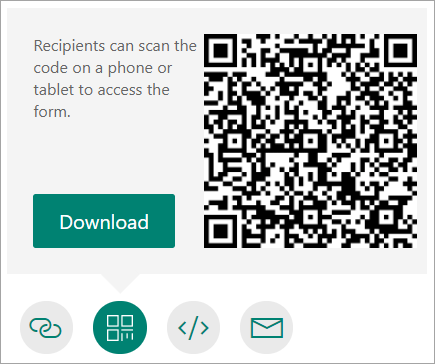
Send a form QR code
Select the QR code button, and then click or tap the Download button, which will download your QR code as a .png file. Insert the .png wherever your intended audience can scan it with a QR code scanner, such as a mobile device, to access your form or quiz.
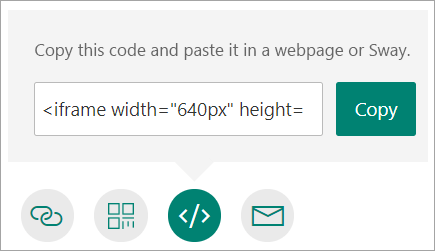
Embed a code
Select the Embed button, and then click or tap Copy. Paste this embed code into a web page, Sway, or a document.
Invite others via email
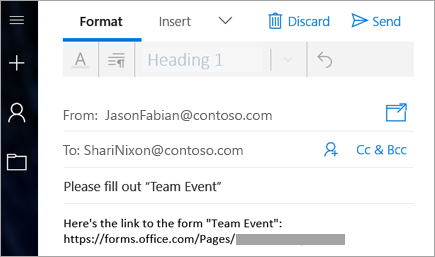
Select the Email button. When your designated email application opens, add email addresses of the people for whom you intend the form. Microsoft Forms includes a brief note in the email body and a link to your form. You can customize the email message as you like.
Note: If you select Specific people in my organization can respond, the names of individuals and groups you've specified will pre-populate in the "Bcc" line of your email. Modify your email as needed before sending.
Note: Anyone who receives the form link through email will be able to forward your email to other people who can potentially see and complete your form. If your form, however, is set to Only people in my organization can respond or Specific people in my organization can respond, only individuals and groups you define - whether everyone in your organization or just specific individuals and groups - can view and respond to your form (regardless if the email has been forwarded to them).
Source: Support.microsoft.com

12/11/2025


