
- Training
- Service
- Promotion
- Schedule
- Testing Center
- News
- Contact
8/1/2022


New Features

Microsoft calls this Automatic Data Conversion, and they're testing some new settings that let you turn it off for three types of entries: leading zeros, long numbers, and scientific notation.
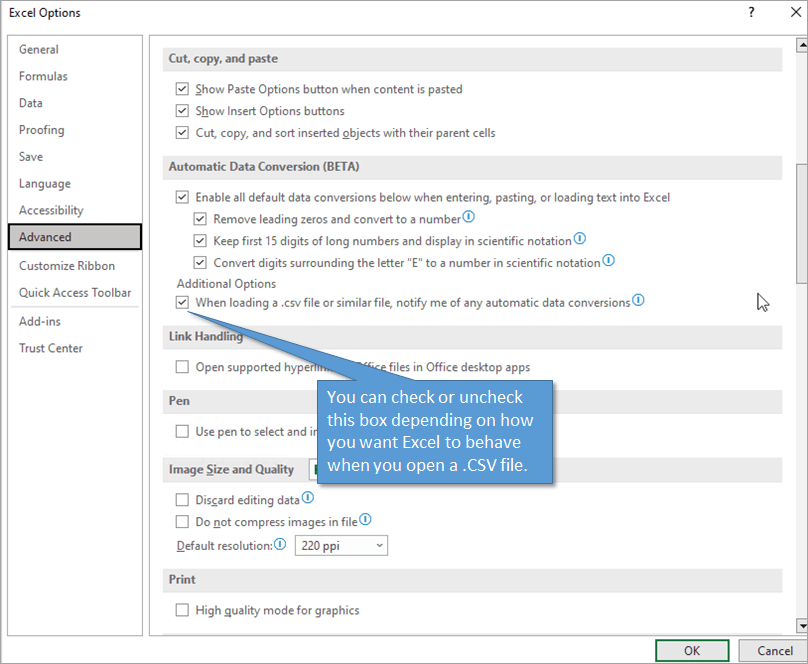
These options are currently in Beta testing, but when the general public has access to them, you'll find them in the Advanced section of the Excel Options window under the Automatic Data Transformation heading.

Let's look at three cases where we can now turn off Automatic Data Conversion..
1. Zero surrender
The first option to turn off automatic data conversion is for cases with leading zeros in your number. By default, Excel automatically discards any extra zeros before a number. But there may be cases where you want the numbers not to show up, such as with these New York zip codes.

To disable automatic removal of leading zeros, simply uncheck that option on the Excel Options window.
2. Long number
When you have a number over 15 digits, Excel automatically rounds the number and converts it to scientific notation. By unchecking the box on the Excel preferences window, you can disable that automation.

3. Scientific notation
The last case applies when you have entered data with the letter E placed at the end in a string of digits. Excel thinks you're trying to indicate a scientific notation, and it converts it to appear that way. However, sometimes you may not want that automatic conversion. (For example, you might just be typing some models with an E at the end.) To disable that automation, you can uncheck the box for that on the Excel Options window.

One thing to keep in mind is that the scientific notation format takes precedence over the conversion setting, so if it was already there when you changed the setting, you'll have to go back and adjust the cell formatting for the cells to be converted. mention.
Ways to prevent current data conversion
You may be wondering, is there any current alternative to Automatic Data Conversion when you don't have these experimental features? Currently, to prevent Excel from automatically converting a number to a format you don't want, you need to change the format from number to text. Data entered in text format will appear exactly the way you typed it. There are two ways to change the format from number to text.
1. Change cell format
With your desired range of cells selected, go to Home. In the Number section, you can select Text in the format drop-down menu.

Note: Is a format conversion BEFORE entering the value.
2. Using Apostrophe
Another option is to simply enter an apostrophe (') before your entry. This tells Excel to store the data as text. The apostrophe you type won't be displayed in the cell, but you can see it in the formula bar.
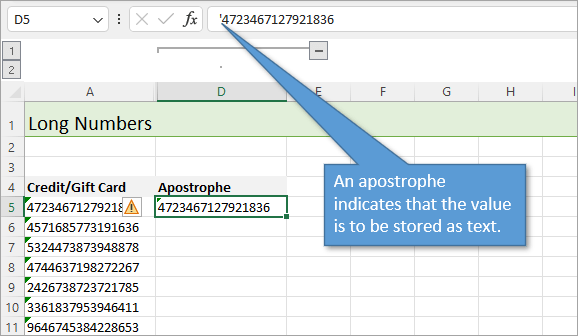
You'll notice a small green triangle in the corner of the cell alerting you that the value you entered is being stored as text.
Open the .CSV . file
These mentioned options also apply when you open a .CSV file. However, there is also an option that you can check to receive a warning about data conversion when you open a .CSV file. This is a useful feature.
Source: https://www.excelcampus.com
Related courses: Microsoft Excel


12/11/2025


