
- Training
- Service
- Promotion
- Schedule
- Testing Center
- News
- Contact
7/2/2019


If you'd like to make your presentations more dynamic and exciting, try using Zoom for PowerPoint.
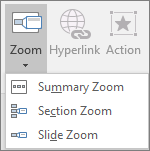
When you create a Zoom in PowerPoint, you can jump to and from specific slides, sections, and portions of your presentation in an order you decide while you're presenting.
Zoom for PowerPoint is only available on Windows—in Office 365 and PowerPoint 2019.
A Summary Zoom is like a landing page where you can see the pieces of your presentation all at once. When you're presenting, you can use the Zoom to go from one place in your presentation to another in any order you like. You can get creative, skip ahead, or revisit pieces of your slide show without interrupting the flow of your presentation.
Summary Zoom is now supported for Office 365 subscribers in PowerPoint for Office 365 for Mac beginning with version 16.19.18110915.


Select slides you want to include in your Summary Zoom. These become the first slides of your Summary Zoom sections. To learn more about using sections in PowerPoint, see Organize your PowerPoint slides into sections.

If you already have sections in your presentation, the first slide of each section is preselected by default. If you don't want to include certain sections in your Zoom, deselect them. Then, if you want PowerPoint to get rid of any sections you didn't include in your Summary Zoom, clear the check box next to Keep unused sections in your presentation. Don't worry—the slides in the sections you're discarding will still be part of your presentation.


Once you've created a Summary Zoom, you might still want to add or remove sections of your presentation. If you've made changes since first making your Summary Zoom that you want to capture, you don't have to start from scratch—just update your Summary Zoom.

Note: You won't be able to add or remove sections from your presentation in this view, just from your Summary Zoom.
A Slide Zoom can help you make your presentation more dynamic, allowing you to navigate freely between slides in any order you choose without interrupting the flow of your presentation. They're a good option for shorter presentations without lots of sections, but you can use Slide Zooms for lots of different presentation scenarios.
Slide Zooms help you drill down into multiple pieces of information while feeling as though you're staying on the same canvas.

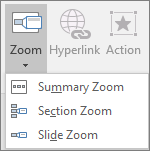
Tip: If you want to, you can create a Slide Zoom quickly by simply selecting the slide you want from the thumbnail pane and dragging it onto the slide you'd like to have your Slide Zoom on. This way, you can create Slide Zooms and change them quickly, and arrange them however you like simply by clicking and dragging.
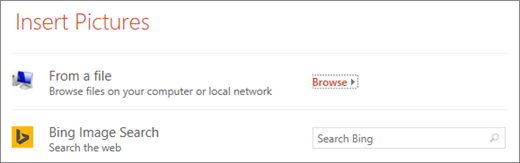
Your Slide Zoom by default will be a preview thumbnail image of the slide, but you can choose a new image from your PC or the web to represent the section or slide you'll be going to.
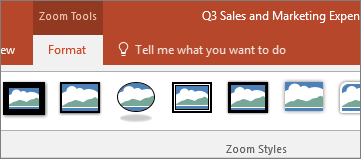
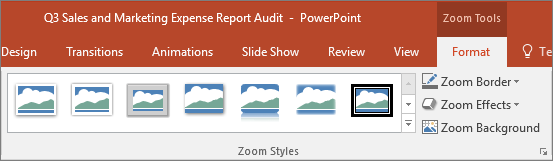
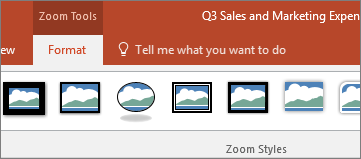
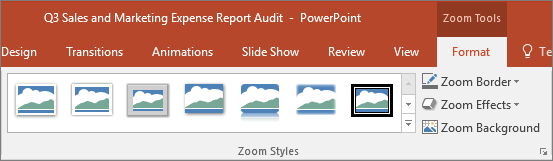
You can also choose various looks for your Zooms from Zoom Styles—you can change the border, add visual effects, or pick from any of the border and effect combinations in the gallery.
A Section Zoom is a link to a section already in your presentation. You can use them to go back to sections you want to really emphasize, or to highlight how certain pieces of your presentation connect. To learn more about using sections in PowerPoint, see Organize your PowerPoint slides into sections.
Go to Insert > Zoom.

Select Section Zoom.
Select the section you want to use as a Section Zoom.
Select Insert. Your Section Zoom will be created.
Tip: If you want to, you can create a Section Zoom quickly by simply selecting the section name you want in the thumbnail pane and dragging it onto the slide you'd like to have a Section Zoom on.
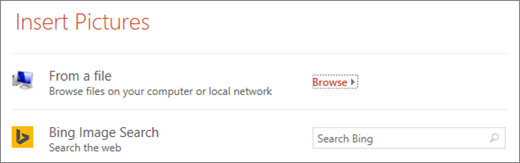
Your Section Zoom by default will be a preview thumbnail image of the slide, but you can choose a new image from your PC or the web to represent the section or slide you'll be going to.

You can also choose various looks for your Zooms from Zoom Styles—you can change the border, add visual effects, or pick from any of the border and effect combinations in the gallery.

Zoom for PowerPoint truly lights up when you make it your own. Select the Format tab of the ribbon to get to the Zoom Tools, which you can choose to create just the look and feel you're going for when you present.

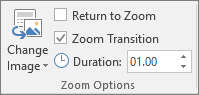
(If you're working with a Summary Zoom or a Section Zoom, you'll return to the Zoom slide by default when you're presenting after going to the section. If you're using a Slide Zoom, you'll move on to the next slide by default after viewing your Slide Zoom.)
Another way you can change the look of your Zoom is by choosing to adopt the background of the slide where your zoom lives to make the Zoom almost indistinguishable from the main canvas while you present. Select Zoom Background to make your Summary, Section, or Slide Zooms blend in to their home slide.
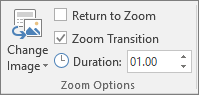
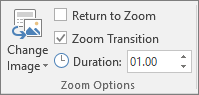
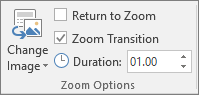
By default, your Zooms will use the Zoom Transition when you present, which is what helps make the Zooms feel so lively. However, if you don't want to use the Zoom Transition, or if you want to change the duration of the transition, you can do so.

12/11/2025


